Track recurring bills and get reminders before they're due
Keep rent, utilities, phone and subscriptions in ReceiptStorm's free bill tracker: see what's left to pay this month and get a reminder before each due date.
In this guide
ReceiptStorm's Bills work as a simple bill tracker. You add each recurring payment once, such as rent, utilities, your phone or a streaming service, and the app shows what's left to pay this month and sends a push reminder before every due date. Bills are free on every plan, and a bill you mark paid can count in your spending automatically.
How to add a recurring bill
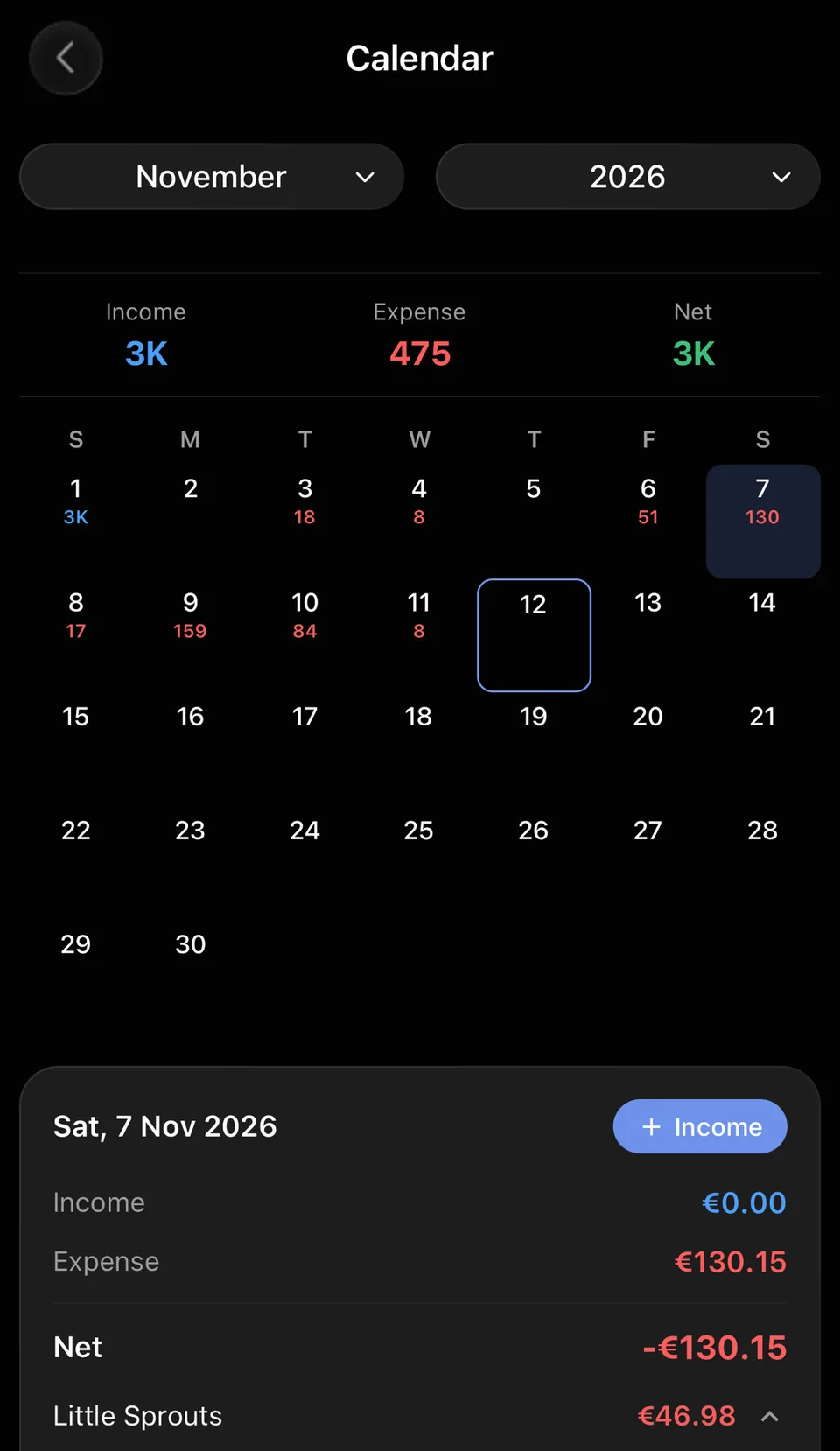
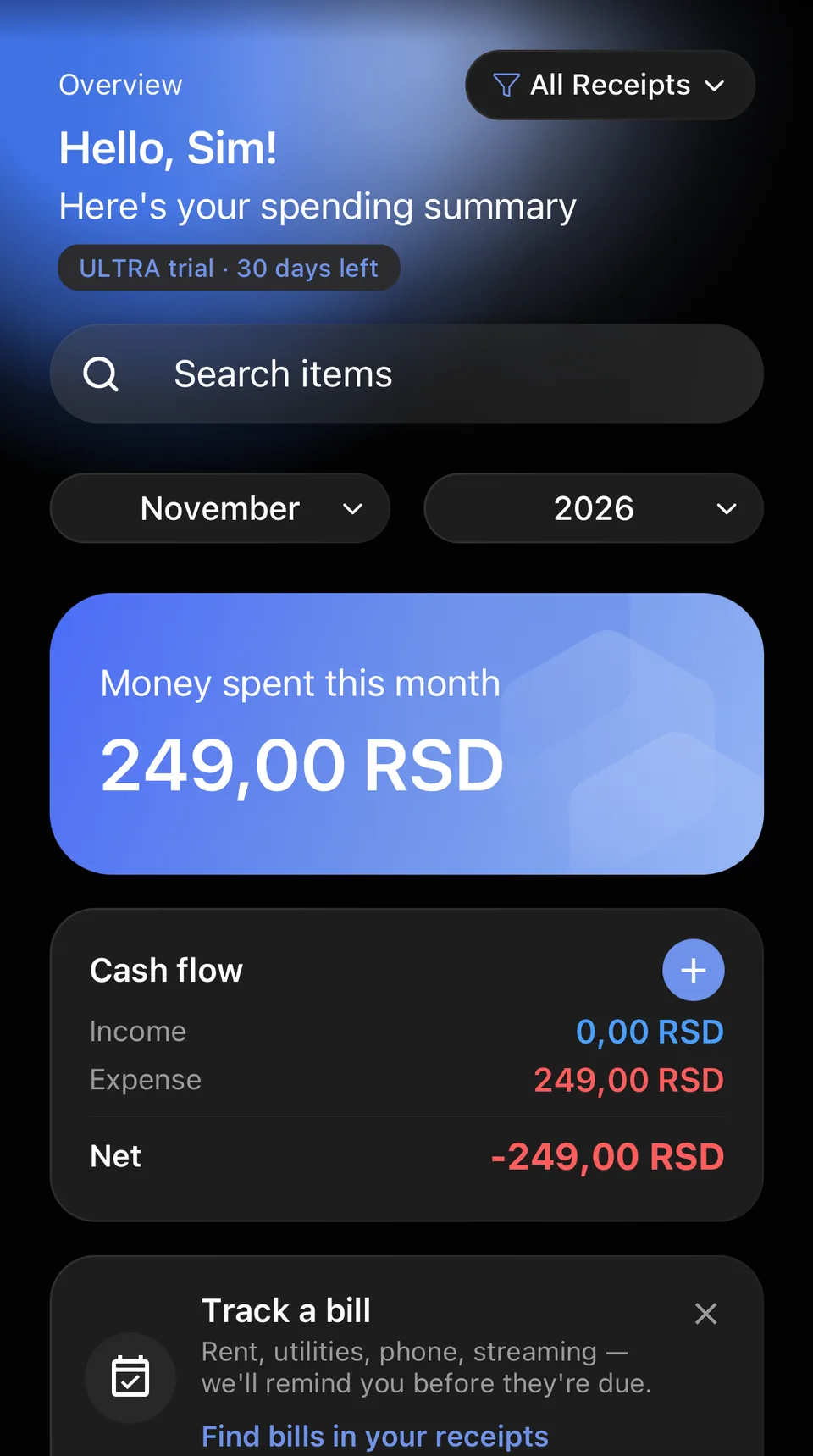
On Home, the Track a bill card sits under Cash flow (for accounts in Serbia, it appears once the first receipt is saved). If you close it, a small + Track a bill link stays in its place. Once you track bills, the Bills card takes over, with a + for adding more. You can also add a bill due on a specific day from the Calendar, with + Bill.
Name it and set the amount
Type a Name, such as Rent, and the Amount. For a bill that changes every month, like electricity, turn on Amount varies and enter a typical amount, or leave it empty.
Pick the currency and type
Check the Currency and choose a Type: Rent, Utilities, Phone & internet, Streaming, Apps & cloud, Loan, Insurance, Gym, Taxes, Savings or Other.
Set the schedule
Under Repeats, choose how often it comes, anything from Weekly to Yearly, including Twice a month. Then set the First due date.
Choose the reminder
Under Reminder, pick Off, On the due day, or 1, 2, 3 or 7 days before. New bills start at 3 days before.
Decide about spending
Keep Count in my spending on if paying the bill should count as an expense, and check the Category it goes to.
Save it
Tap Save bill.
Three optional fields cover special cases:
- Charged automatically, for direct debits: the bill is marked paid on its due day without asking whether you paid, and that day's reminder tells you it's charged today.
- Free trial ends, for subscriptions that start free: enter the day of the first charge, as the store shows it, and the bill's reminders include a heads-up two days before the trial ends.
- Ends on, for payments that stop, such as the last installment of a loan.
Tip
In Serbia, you can skip the typing. Scan the IPS QR code on a payment slip with Scan QR Code, save it, and tap Track as monthly bill. When a slip pays a bill you already track, saving it marks that bill paid. The guide to Serbian fiscal and IPS QR codes has the details.
When bill reminders arrive
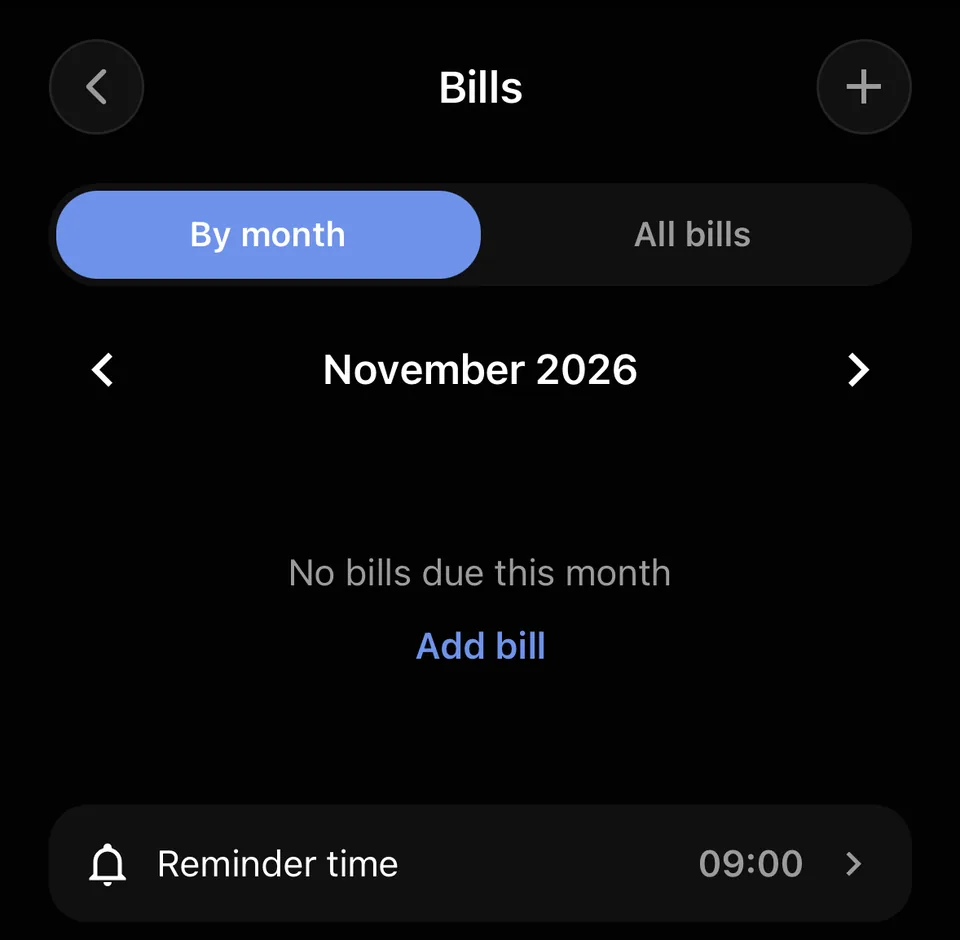
Bill reminders are push notifications, sent at your Reminder time in your phone's time zone. It's 09:00 unless you change it: open the Bills screen, tap Reminder time at the bottom and pick any full hour from 06:00 to 22:00.
For each unpaid bill, up to three reminders can arrive:
- Before the due date, on the lead day you picked: “Bill due soon”.
- On the due date: “Bill due today”.
- Two days later, if the bill still isn't marked paid: “Did you pay Rent?” If two payments in a row go unmarked, you get “Still paying for Rent?” instead, and the app offers to pause or delete the bill.
- Saturday, November 28, 09:00
- “Bill due soon”
- Tuesday, December 1, 09:00
- “Bill due today”
- Thursday, December 3, 09:00
- “Did you pay Rent?”, only if it's still unpaid
Once you mark the rent paid, no more reminders come for that month: pay on December 1 and the third one never arrives. If several bills have a reminder on the same day, they arrive together in one notification.
Good to know
Reminders can't reach you while notifications are off for ReceiptStorm. The Bills screen and the bill form then show Notifications are off — reminders can't reach you with an Open Settings link to turn them back on. Bill reminders are push only, never email.
Notification settings and bill reminders
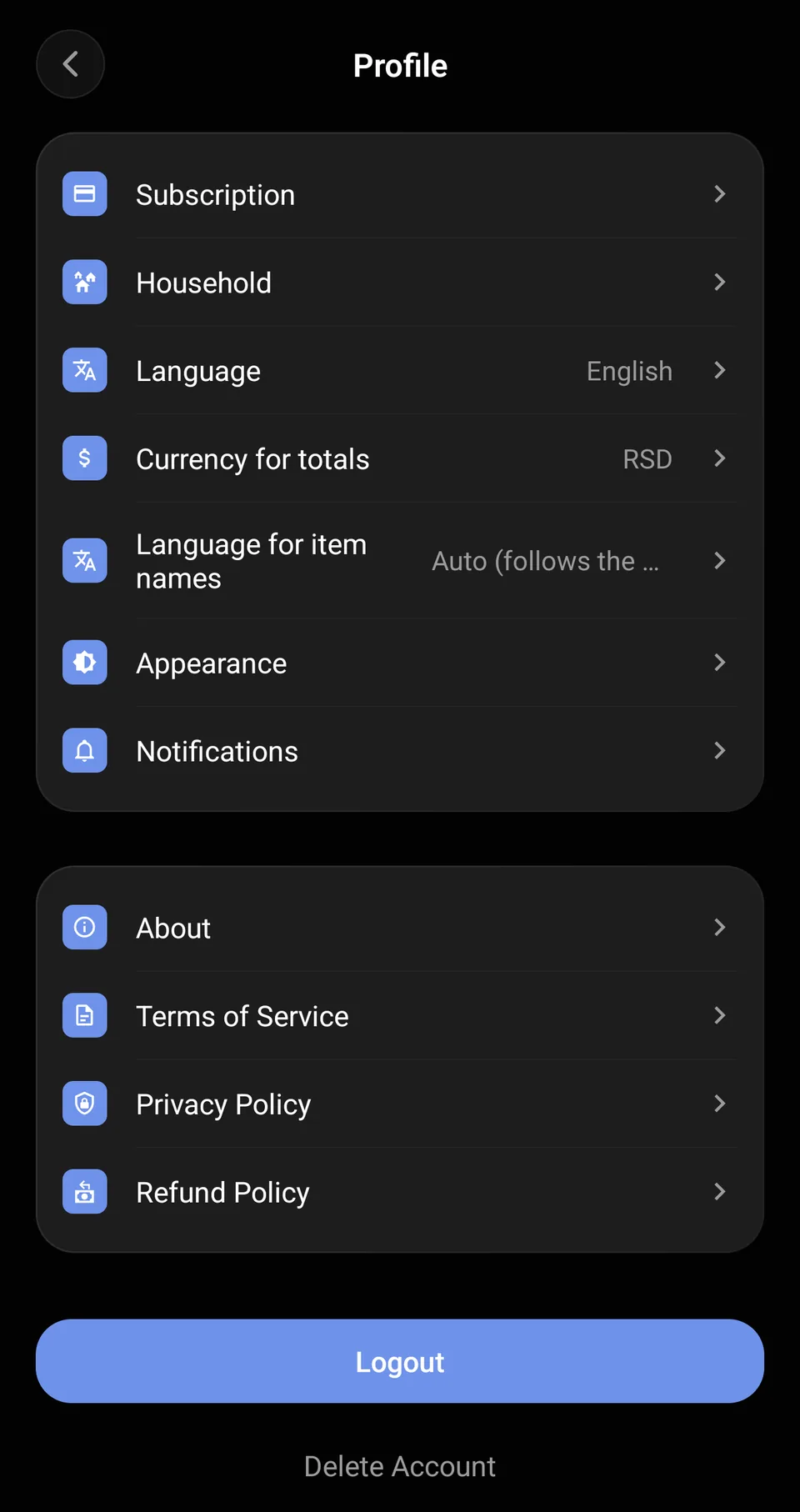
Profile → Notifications shows whether your phone allows push notifications from ReceiptStorm and has switches for tips and for news about new versions. Bill reminders have no switch there: you set them on each bill, under Reminder.
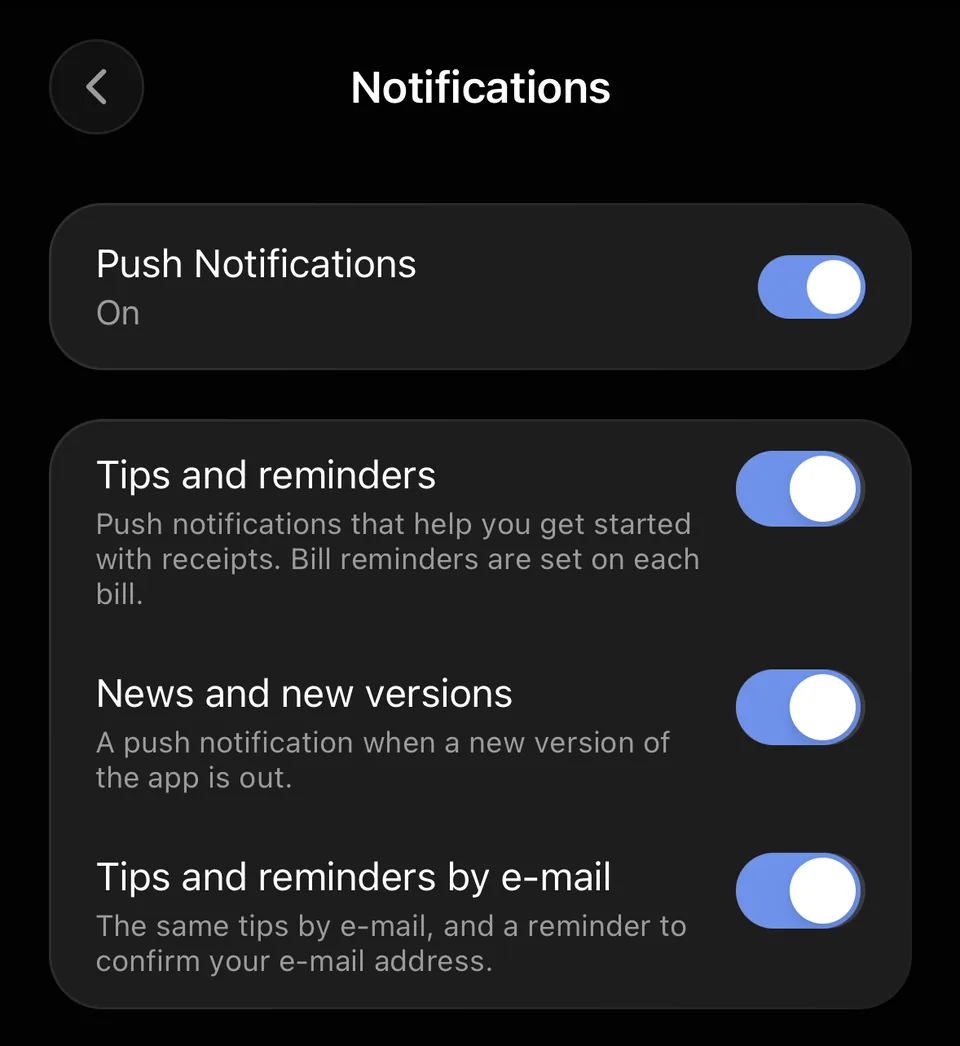
- Push Notifications shows On or Off. Tap it to open your phone's settings and change it there. On an iPhone it can also show On, delivered quietly: notifications then go to Notification Center, not the Lock Screen.
- Tips and reminders: push notifications that help you get started with receipts.
- News and new versions: a push notification when a new version of the app is out.
- Tips and reminders by e-mail: the same tips by email, plus a reminder to confirm your email address.
Turning these switches off doesn't stop bill reminders. Turning off notifications for ReceiptStorm in your phone's settings does, along with every other push from the app. If Push Notifications shows On, delivered quietly, tap Turn on on the Bills screen or in the bill form, then allow notifications so reminders also show on the Lock Screen.
How to mark a bill paid
Find the bill
Open the Bills screen from the Home card. Tap a bill on the card and the screen opens with that bill highlighted.
Tick it off
Tap the check mark on the bill's row to mark it paid today. If the bill counts in your spending but has no amount yet, the app first asks what you paid.
Add details if you need to
Tap ⋯ on the row and choose Mark paid. There you can type Amount paid (optional) for a bill whose amount varies (it becomes the estimate for the next payments) or Charged by your bank (optional) for a bill in another currency.
Or skip it
If nothing is owed this time, choose Skip this month in the same menu. Undo, also in that menu, reverses either one.
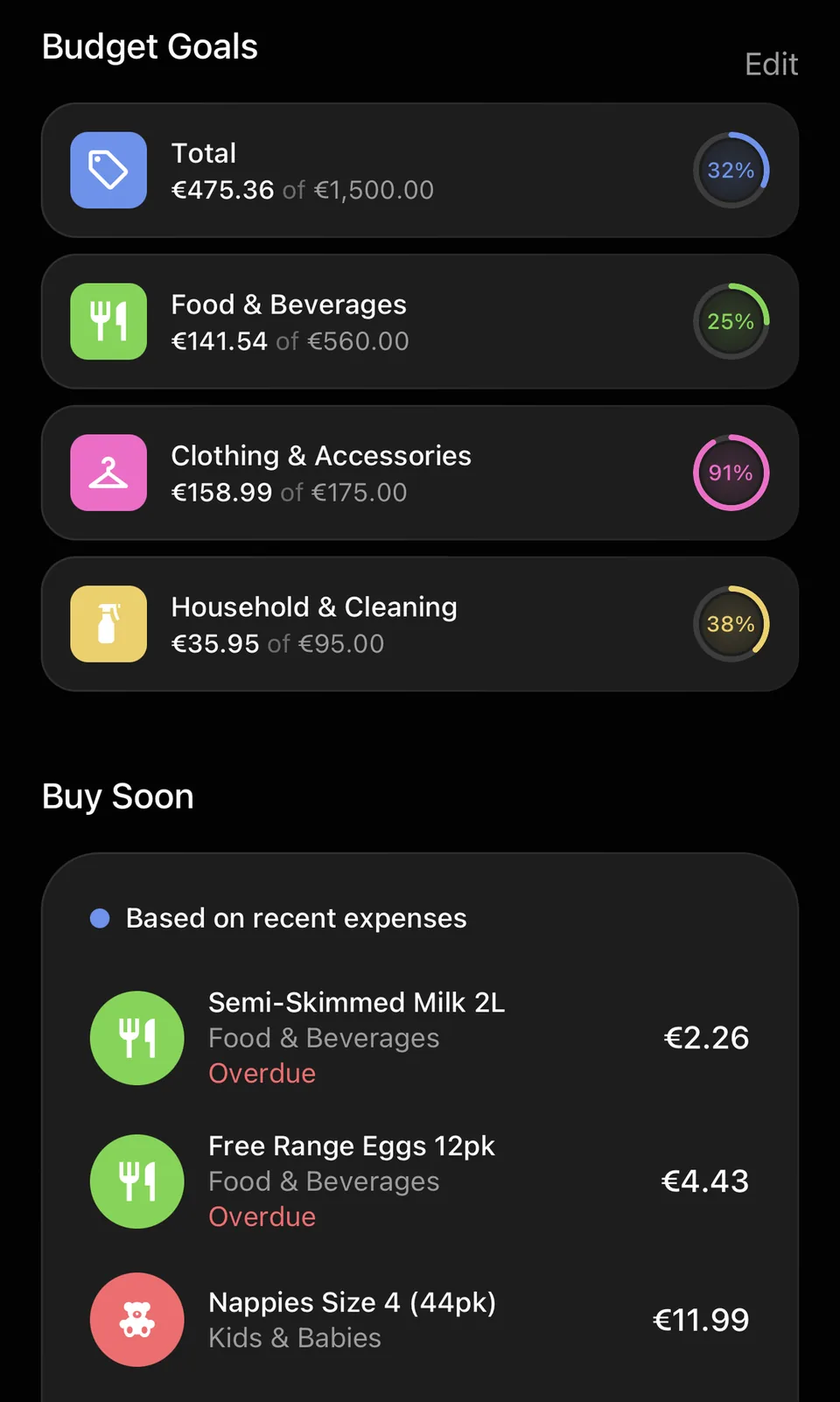
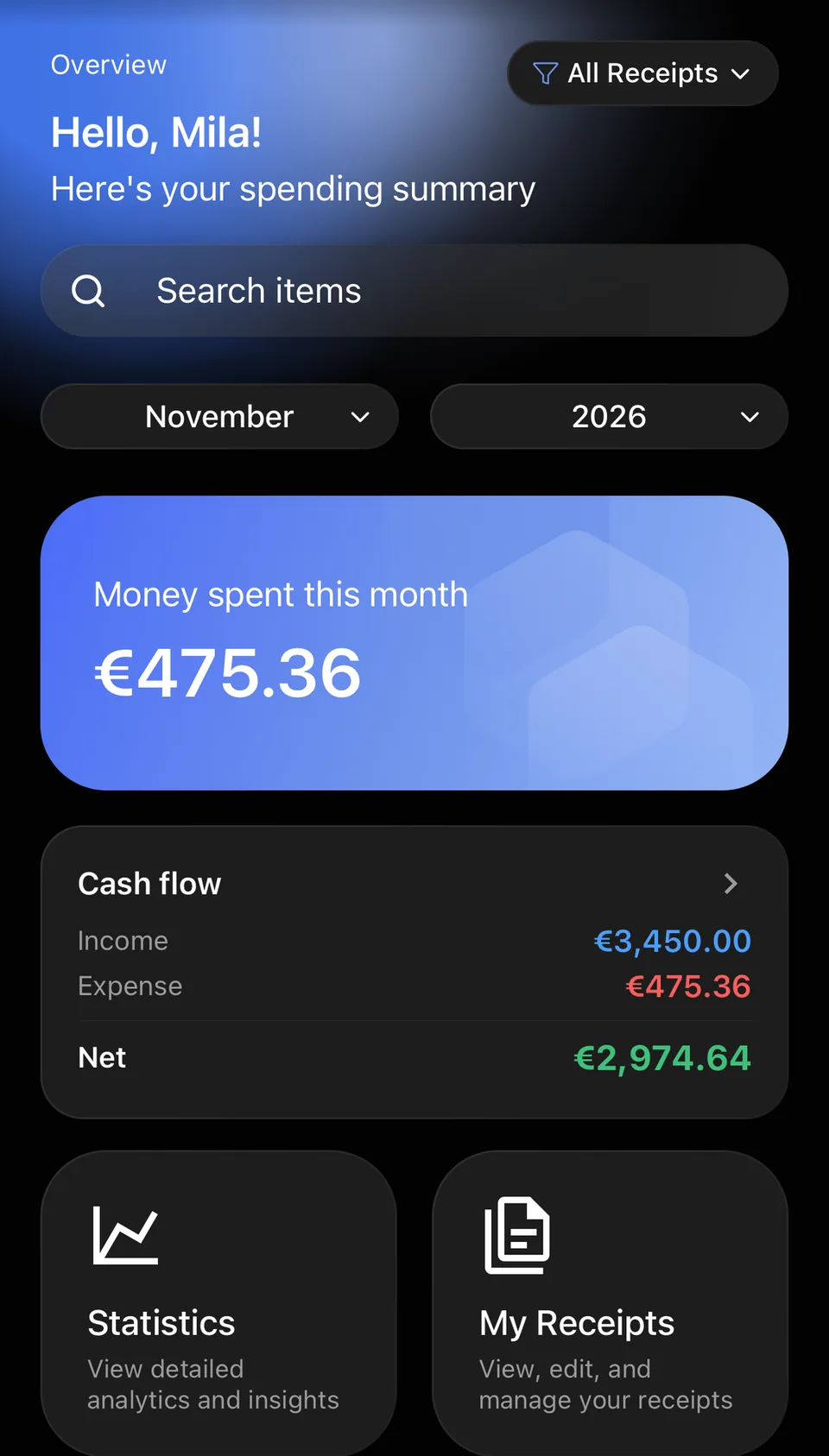
With Count in my spending on, the payment is saved as a receipt in the bill's category, with a Bill tag in My Receipts and the Calendar. It then counts in Money spent this month, which adds an incl. bills line with the bills' share, in the Expense line of Cash flow and in your budget goals.
Already saved the real receipt or payment slip? Link it instead of creating a second one. When you mark a bill paid from the ⋯ menu, receipts that could be the payment are listed under Is one of these receipts the payment?, each with a Link button. If you ticked the bill off before saving the receipt, the bill shows Possible duplicate in your receipts, where you choose Use as the payment or Not a duplicate. New to saving receipts? See the ways to add a receipt.
See what's left to pay this month
The Bills card on Home and the By month view show Left to pay for the month in your currency for totals, plus how many bills are paid, for example Paid 2 of 3. Overdue bills come first, then the rest by due date, with labels such as Today, Tomorrow or In 3 days.
- By month shows one month at a time, with arrows to move between months, bills to pay under Due and the others under Paid & skipped.
- All bills lists every bill with its next due date. There you can Pause a bill (no reminders and nothing due until you resume it), Resume it or open its Payment history.
- Below the list, the app adds up what your running bills cost a month and a year.
Suggested bills and price-rise alerts
Adding bills, reminders, marking bills paid and the Calendar are free on every plan. Two extras depend on your plan (compare plans):
- Suggested bills (Pro and Ultra). When your receipts show you paying the same payee about the same amount month after month, the Bills screen suggests tracking it, with Track and Dismiss. Before you track any bills, Find bills in your receipts on Home takes you there.
- Price-rise alerts (Ultra). When the receipts you link to a fixed-amount bill show a noticeable rise in its price (5% or more), the bill shows Price went up from … to … and you get one push about each new price. For bills in a foreign currency, Ultra also shows the amount at your bank's rate, learned once you've typed Charged by your bank (optional) for at least two payments.
New accounts get both extras during the 30-day Ultra trial, without a card. On the Free plan, the Bills screen shows a short line about what Pro and Ultra add.
Bills in a shared household
If you share a household, a bill can be Shared with household: everyone in it can see the bill and mark it paid, and Who pays it decides who gets the reminders. Paid bills that count in spending then show up in the household's cash flow and calendar. The bill extras follow the owner's plan: if the owner has Pro or Ultra, every member gets them too.
See your own spending, item by item
ReceiptStorm is free to download for iPhone and Android.



Frequently asked questions
Can ReceiptStorm pay my bills?
No. ReceiptStorm tracks your bills and reminds you; you pay them as usual and then tick them off with the check mark on the Bills screen. For direct debits, turn on Charged automatically and the app marks them paid on the due date.
Are bill reminders free?
Yes. Adding bills, reminders and marking bills paid work on every plan. Only Suggested bills (Pro and Ultra) and price-rise alerts (Ultra) need a paid plan; see the plans.
Do bill reminders come by email?
No. They're push notifications on your phone, sent at your Reminder time, which is 09:00 unless you change it.
Why didn't I get a bill reminder?
Check Profile → Notifications first: Push Notifications must be on. On an iPhone, On, delivered quietly means reminders go to Notification Center, not the Lock Screen. Also check that the bill's Reminder isn't set to Off and that the bill isn't paused or already marked paid. In a shared household, only the person under Who pays it gets the bill's reminders.
How do I turn off bill reminders?
For one bill, set Reminder to Off in its form, or Pause the bill in All bills (no reminders and nothing due until you resume it). The switches in Profile → Notifications don't affect bill reminders. Turning off notifications for ReceiptStorm in your phone's settings stops all of them, and the app's other pushes too.
What happens when I delete a bill?
Delete a bill with Delete bill in its form or from the ⋯ menu in All bills; the app offers Pause first in case you only need a break. A bill without payments is removed. One with payments is kept as Deleted and can be brought back, paused, with Restore. Deleting it again erases its payment history for good, but your receipts stay.