Set a monthly budget by category and see what to restock
Set a monthly budget by category or overall in ReceiptStorm, watch the progress rings fill from your receipts, and let Buy Soon show what's due to restock.
In this guide
To set a monthly budget by category in ReceiptStorm, scroll down the Home tab to Budget Goals, tap Add, type a limit, pick a category (or Overall for everything) and tap Done. That month's receipts, including the ones you saved earlier, then fill the goal's ring. Right below, Buy Soon lists the things you buy again and again once they're due, so you can plan your next shopping trip.
What Budget Goals and Buy Soon show
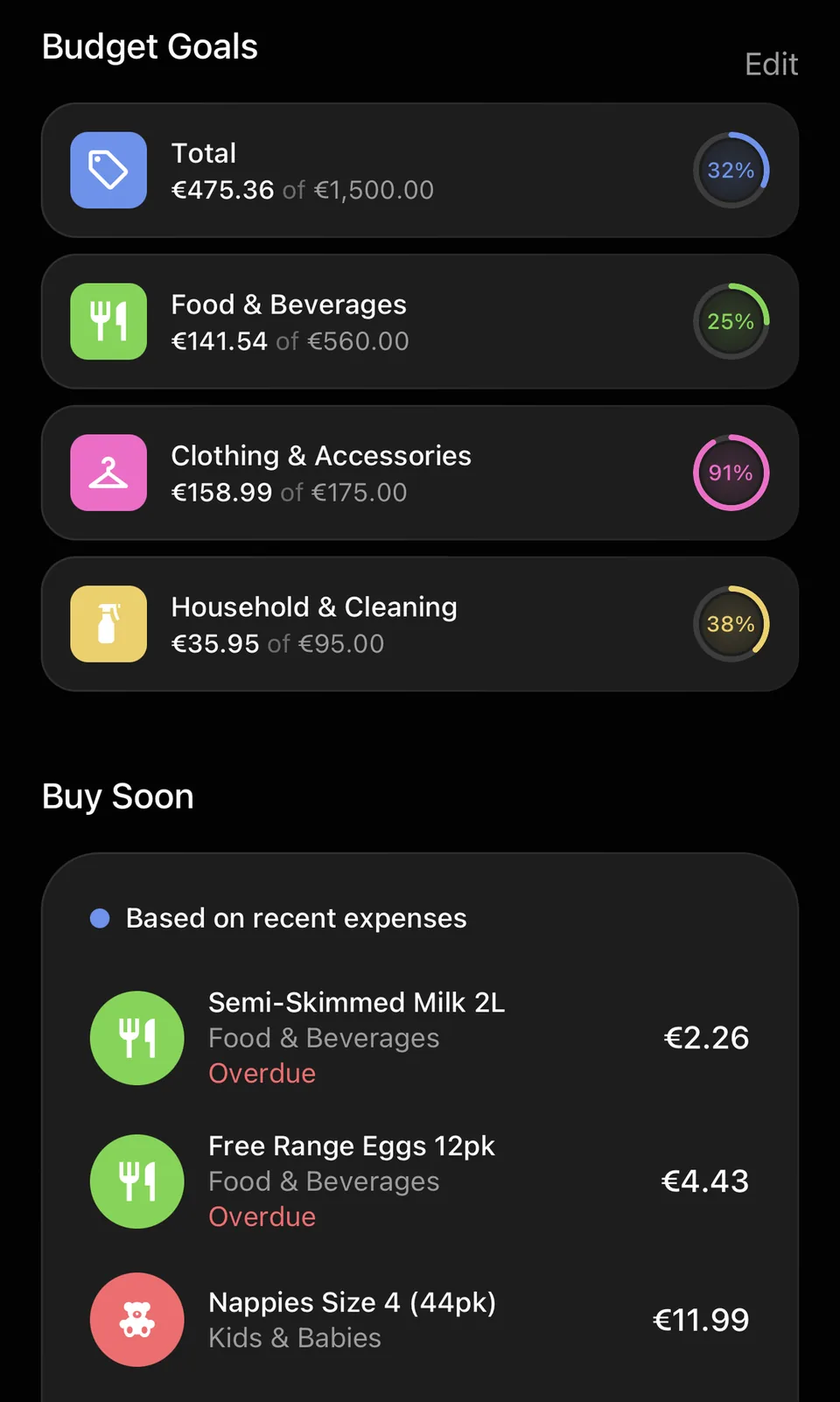
Both sections sit at the bottom of the Home tab, and both are free on every plan. The screenshot above shows Mila's November: an overall goal at the top, three category goals and a short Buy Soon list. Each goal has three parts:
- A name: one of the app's categories, such as Food & Beverages, or Overall for all your spending that month.
- Spent of limit: for example €141.54 of €560.00, in your Currency for totals.
- A ring with the share of the limit you've used. It fills up to 100%, and the number keeps counting if you go over, so 120% means you're a fifth above your limit.
- Overall
- €475.36 of €1,500.00 (32%)
- Food & Beverages
- €141.54 of €560.00 (25%)
- Clothing & Accessories
- €158.99 of €175.00 (91%)
- Household & Cleaning
- €35.95 of €95.00 (38%)
The overall budget still has €1,024.64 to go, but Clothing & Accessories has only €16.01 left. That's why category goals are worth setting: the total looks relaxed while one category is nearly spent.
Category goals add up items, not whole receipts: a supermarket receipt with milk and dish soap puts the milk under Food & Beverages and the soap under Household & Cleaning, while Overall counts every receipt in full. Either way, goals only see the receipts you save, so they're as complete as your records. If you're just starting out, see how to add your first receipt.
How to set a monthly budget by category
Goals belong to a month, so the month picked on Home matters. Here's the whole setup:
Pick the month
At the top of Home, set the month and year pickers to the month you're budgeting for, usually the current one.
Open Budget Goals
Scroll down to Budget Goals and tap Add. If you already have goals, tap Edit, then the + button below them.
Enter your limit
Under Set your monthly limit, type the amount in your currency for totals, for example 560 for groceries.
Choose a category
Under Select Category, tap a category such as Food & Beverages, or Overall to cap all your spending.
Save the goal
Tap Done at the right end of the amount field. The goal appears on Home with its ring, already counting that month's receipts.
Good to know
A goal applies only to the month it was set for. Goals don't carry over: when a new month starts, the section shows Set Budget again until you add goals for that month.
How to choose realistic limits
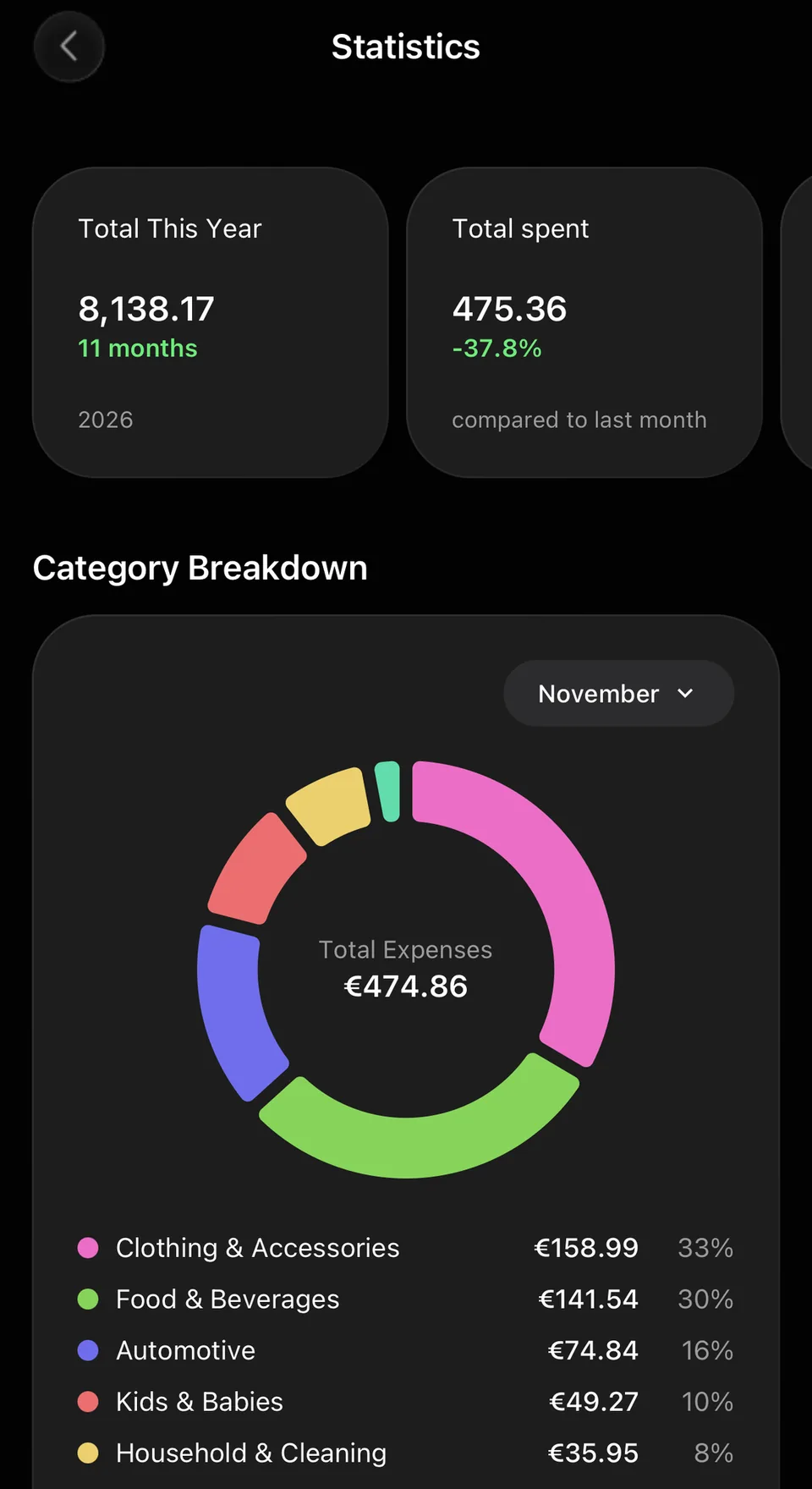
A limit only helps if it's realistic, so start from what you actually spent. Open Statistics and look at Category Breakdown, which shows each category's total for the month you pick. The spending statistics guide explains the rest of that screen.
- Start from last month. Take a category's total from last month, round it up a little, and tighten it once you see how the month goes.
- Keep Overall above your category goals combined. Overall counts everything, including categories that have no goal of their own.
- Remember your bills. A bill you mark paid with Count in my spending on is saved as a receipt in its category, such as Housing & Utilities, so it counts toward Overall and that category's goal. See how bill tracking works.
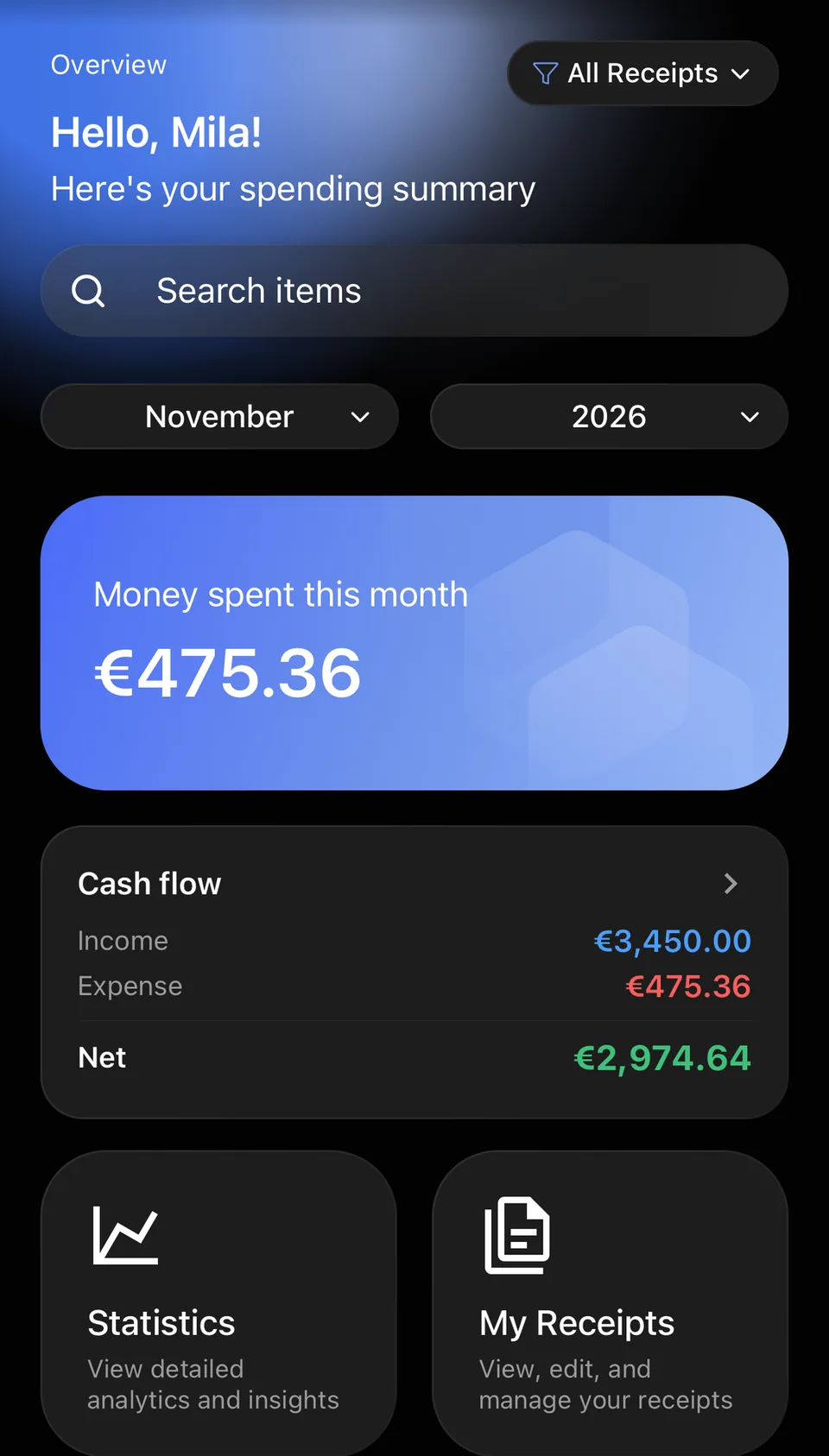
- Check it against your income. If you record income, the Cash flow card shows what's left after spending, which helps you pick an Overall limit you can afford. Tracking income and cash flow shows how.
- Budgeting as a family? If you share a household in the app, your goals count everyone's receipts, so one Food & Beverages limit covers the whole home. The goals themselves are seen and edited only by the person who set them.
How to change or delete a goal
Turn on editing
In Budget Goals on Home, tap Edit. While you edit, the link reads Done.
Change a goal
Tap the goal, change its amount or category, and tap Done.
Delete a goal
Tap the trash button next to it. The goal is deleted right away, without a confirmation.
Finish editing
Tap Done next to the section title.
Each category, and Overall, can have one goal per month. Entering a new limit for a category that already has one simply updates it. If you move a goal onto a category that already has its own, the app asks first and offers Replace.
How Buy Soon knows what to restock
Buy Soon shows up under your goals, headed Based on recent expenses, as soon as it has something to show. It looks through your recent receipts for items you buy again and again, at least three times, and works out the average gap between those purchases. Your last purchase plus that gap is roughly when you'll need the item again.
Say you buy Semi-Skimmed Milk 2L about once a week. Buy Soon then expects you to buy it again about a week after the last time, and once that day comes, the milk is marked Overdue. Buy Soon looks only at purchases, so bills you mark paid never show up here.
- Each row shows the item, its category and the average price you paid, in your currency: Semi-Skimmed Milk 2L at €2.26 in the screenshot at the top of this guide.
- Overdue in red means the expected day has come or gone. In the screenshot, the milk and the Free Range Eggs 12pk are overdue, while Nappies Size 4 (44pk) isn't due yet.
- Up to five items are listed, the most urgent first. Swipe one to the left to hide it for now, and the next item moves up. Hiding isn't saved, so the item can come back later.
Tip
Buy Soon isn't a shopping list. To build one and see where you've recently paid less for the same items, use My Basket, which needs Pro or Ultra. New accounts can use it during the 30-day Ultra trial, no card needed. See the plans.
See your own spending, item by item
ReceiptStorm is free to download for iPhone and Android.



Frequently asked questions
Does ReceiptStorm warn me when I go over budget?
No. There are no budget notifications. Check the rings under Budget Goals on Home; a goal over its limit shows more than 100%.
Do budget goals carry over to the next month?
No. Each goal belongs to the month that was picked on Home when you set it. At the start of a new month, add your goals again.
Can my household share one budget?
No, budget goals are personal. If you're in a household, though, your goals measure the whole household's spending, because everyone's receipts are shared.
Why is my Buy Soon list empty?
An item needs at least three purchases in recent months before Buy Soon can predict it, and the section appears only when it has something to show. Keep saving receipts and it fills in.
Can I create my own budget categories?
No. Goals use the app's 13 fixed categories, plus Overall for all your spending.
What happens to my goals if I change currency?
Goal amounts aren't converted when you change Currency for totals in Profile, so update each limit after switching.