Track income and expenses: cash flow and a money calendar
Use ReceiptStorm as an income and expense tracker: record your income, see Income, Expense and Net on the Cash flow card, and check every day in the Calendar.
In this guide
ReceiptStorm becomes an income and expense tracker as soon as you add your income. Expenses come from the receipts you save; income is what you enter with the + on the Cash flow card. The card shows Income, Expense and Net for the month, and the Calendar behind it shows the same money day by day.
Income and expenses on the Cash flow card
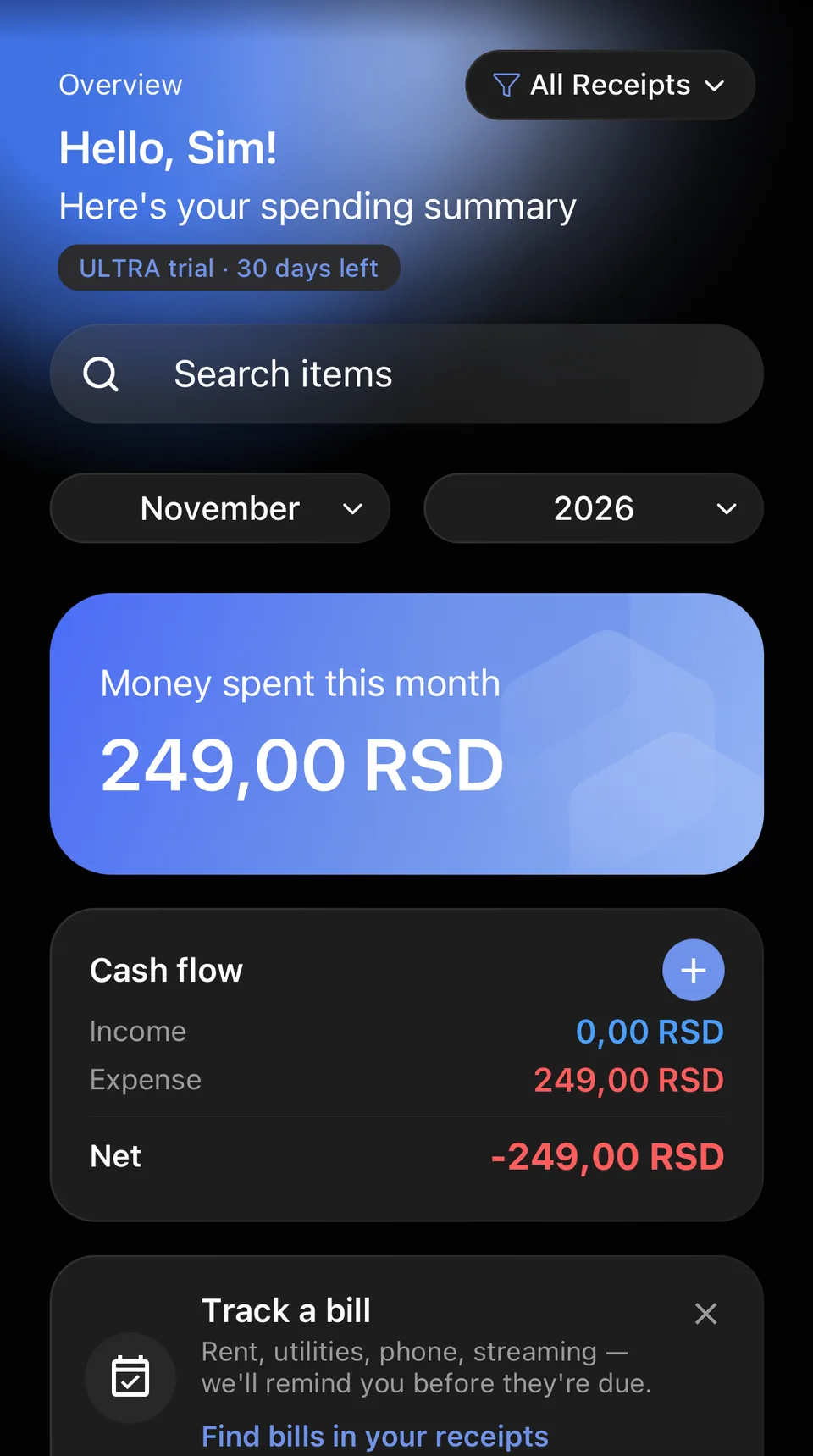
Cash flow sits on Home, right under Money spent this month, and always covers the month picked at the top of the screen:
- Income is the income you've added for that month. Nothing is imported from a bank, so it's exactly what you enter.
- Expense is all your receipts from that month, including bills you marked paid with Count in my spending on, converted to your Currency for totals.
- Net is income minus expense: green when money is left over, red when you've spent more than the income you recorded.
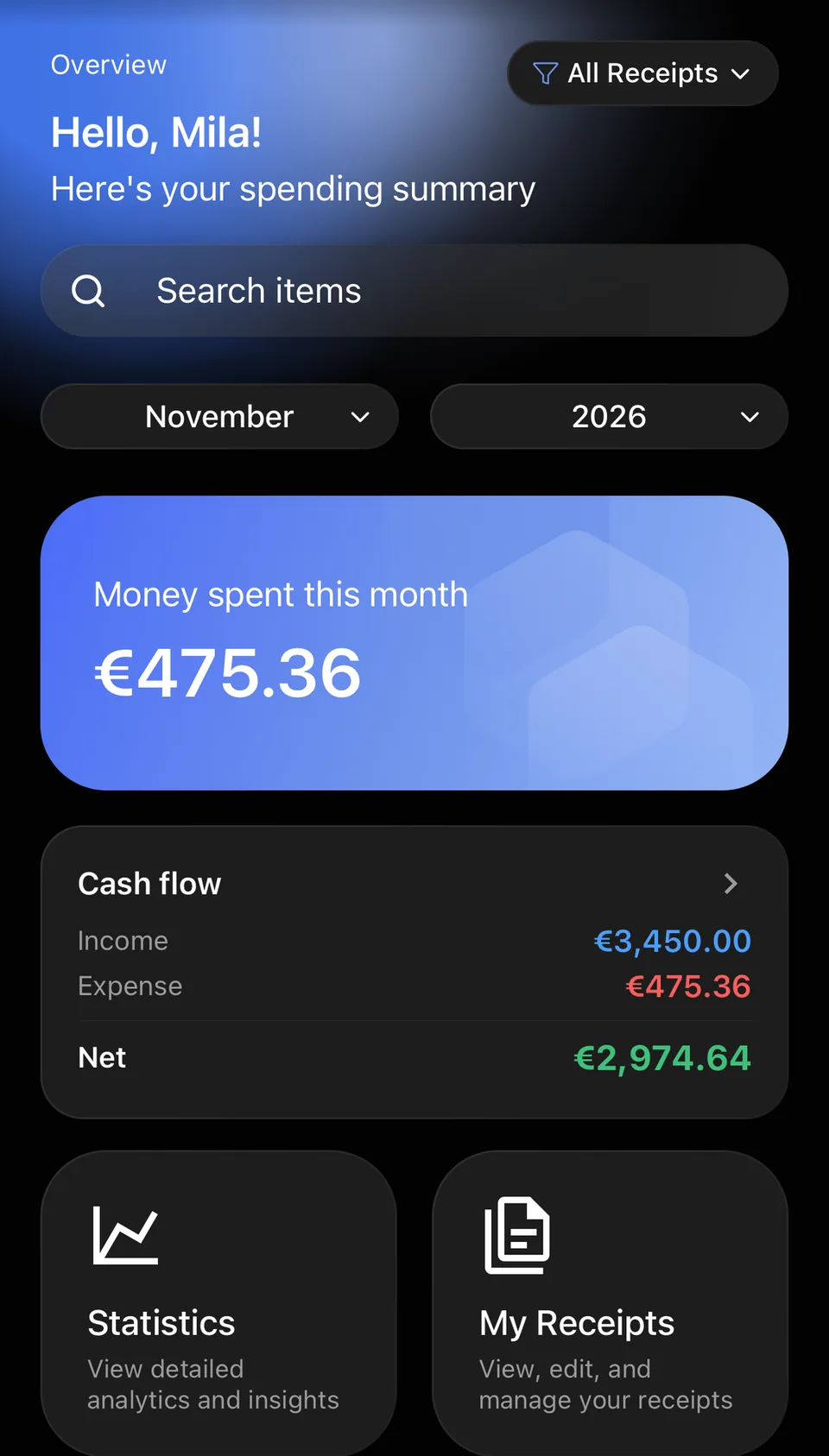
- Income (recorded on November 1)
- €3,450.00
- Expense (receipts so far)
- €475.36
- Net
- €3,450.00 − €475.36 = €2,974.64
Expense equals Money spent this month, because both add up the same receipts. Each new receipt lowers Net until the next income arrives.
Net is the number to check before a big purchase, because it's what's left of the month's income after all the receipts you've saved so far. Switch the month at the top of Home to compare it with earlier months and you'll see whether you're putting money aside or slowly overspending.
How to add income
Tap + on Cash flow
On Home, tap the + in the corner of the Cash flow card. Add income opens with today's date.
Enter the amount
Type the Amount and check the Date. Currency starts as your currency for totals; change it if you were paid in another one.
Name the source
Under Source, note who paid you, such as your employer or a client. Entries without a source are listed as Salary in the Calendar.
Save it
Tap Save income. The amount is added to Income for the month of its date.
For income that arrived on another day, open the Calendar, tap that day and choose + Income: the form opens with that date filled in. Add one entry per payment, so a salary and a freelance fee are two entries, each with its own source.
Good to know
Income in another currency is converted at the exchange rate of its date, or the most recent one before it. If no rate is available yet, the entry is saved but stays out of the totals until there is one. Receipts in other currencies covers the details.
Get a monthly reminder for your salary
If you're paid on the same day every month, switch on Remind me every month before you save. On that day of the month, the app checks whether the income is recorded; if it isn't, you get a push, “Did your salary land?”, and tapping it opens Add income with the details filled in. The reminder only asks: income is never added by itself.
- The day comes from the income's Date: a salary dated the 25th brings a reminder on the 25th of each month. Reminders set for the 29th to the 31st come on the last day of shorter months.
- If that month's income from the same source is already recorded (or, without a source, the same amount and currency), no reminder is sent.
- A reminder isn't a forecast: expected income doesn't appear in Cash flow until you add it.
Good to know
There's no screen that lists these reminders, and you can't edit or stop one from inside the app. The only way to silence them is to turn off notifications for ReceiptStorm, which also stops your bill reminders. So switch on Remind me every month only for income that really arrives every month.
How to read the money calendar
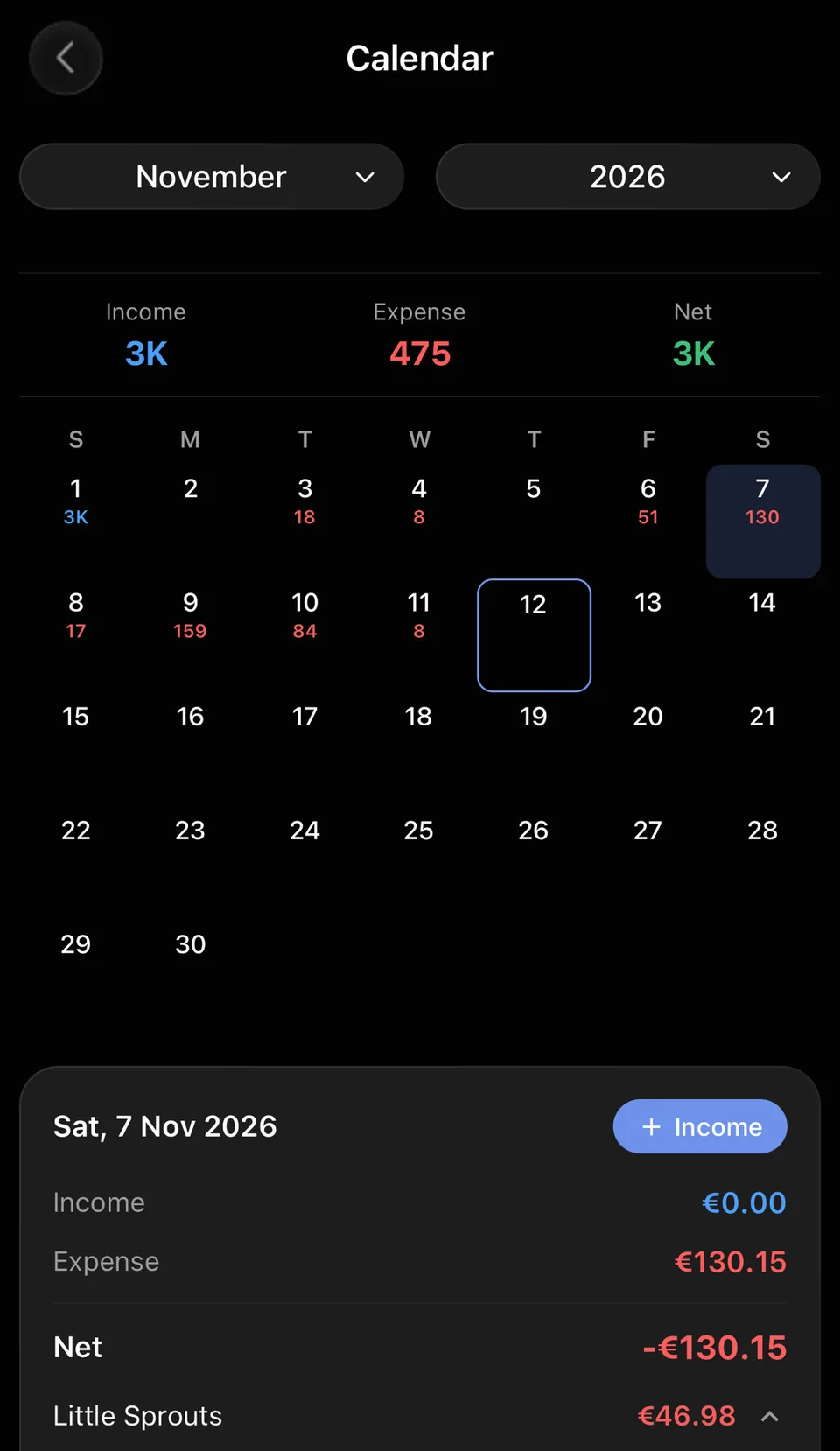
Tap the Cash flow card anywhere except the + to open the Calendar for the same month. The top repeats the month's Income, Expense and Net. In the grid, each day shows its income in blue and its spending in red, rounded so the cells stay readable: in the screenshot at the top of this guide, the €3,450.00 recorded on November 1 shows as 3K.
Tap a day to see its details: that day's income, expense and net, its income entries (each with a delete button) and its receipts, which open up to show their items. View receipts for this day takes you to My Receipts.
- Income
- €0.00
- Expense
- €130.15
- Net
- -€130.15
- First receipt listed
- Little Sprouts, €46.98
A day with spending but no income always has a negative net, so judge the month instead: November's Net at the top is still about 3K.
Bills in the calendar
The Calendar also shows your recurring bills. A dot marks each day with a bill still to pay, red when it's overdue. In a day's details, Bills due lists them, and + Bill adds a new bill due that day. Bills you mark paid with Count in my spending on appear among the expenses of the day you paid them, tagged Bill.
Tips for an accurate cash flow
- Record every income, not just your salary: freelance work, a second job, rent you collect. Net is only as complete as the income you add.
- Save every receipt. Expense only knows what you save. If you're new, see how to add your first receipt.
- Use the real date. Income counts in the month of its date, so a salary paid on the 31st belongs to that month, even if you spend it in the next.
- Plan with it. Once you know your monthly income, set budget goals that leave room for savings, and check where the money goes in spending statistics.
- Share it at home. In a household, income and the Calendar are shared, so Cash flow shows the whole household's money.
See your own spending, item by item
ReceiptStorm is free to download for iPhone and Android.



Frequently asked questions
Does ReceiptStorm connect to my bank account?
No. Expenses come from the receipts you save and income from what you enter. Nothing is synced from a bank or card.
Why is my Net negative?
Net is income minus expense for the month. Until you add that month's income, Net is just your spending with a minus sign. Add income with the + on Cash flow.
How do I edit or delete an income entry?
Open the Calendar, tap the day of the income and delete it with the trash button. To correct an amount, delete the entry and add it again.
Is income tracking free?
Yes. Cash flow, Add income, the Calendar and monthly income reminders work on every plan.
Can I see cash flow for an earlier month?
Yes. Pick the month and year at the top of Home; Cash flow and the Calendar follow your choice. The Calendar also has its own month and year pickers.