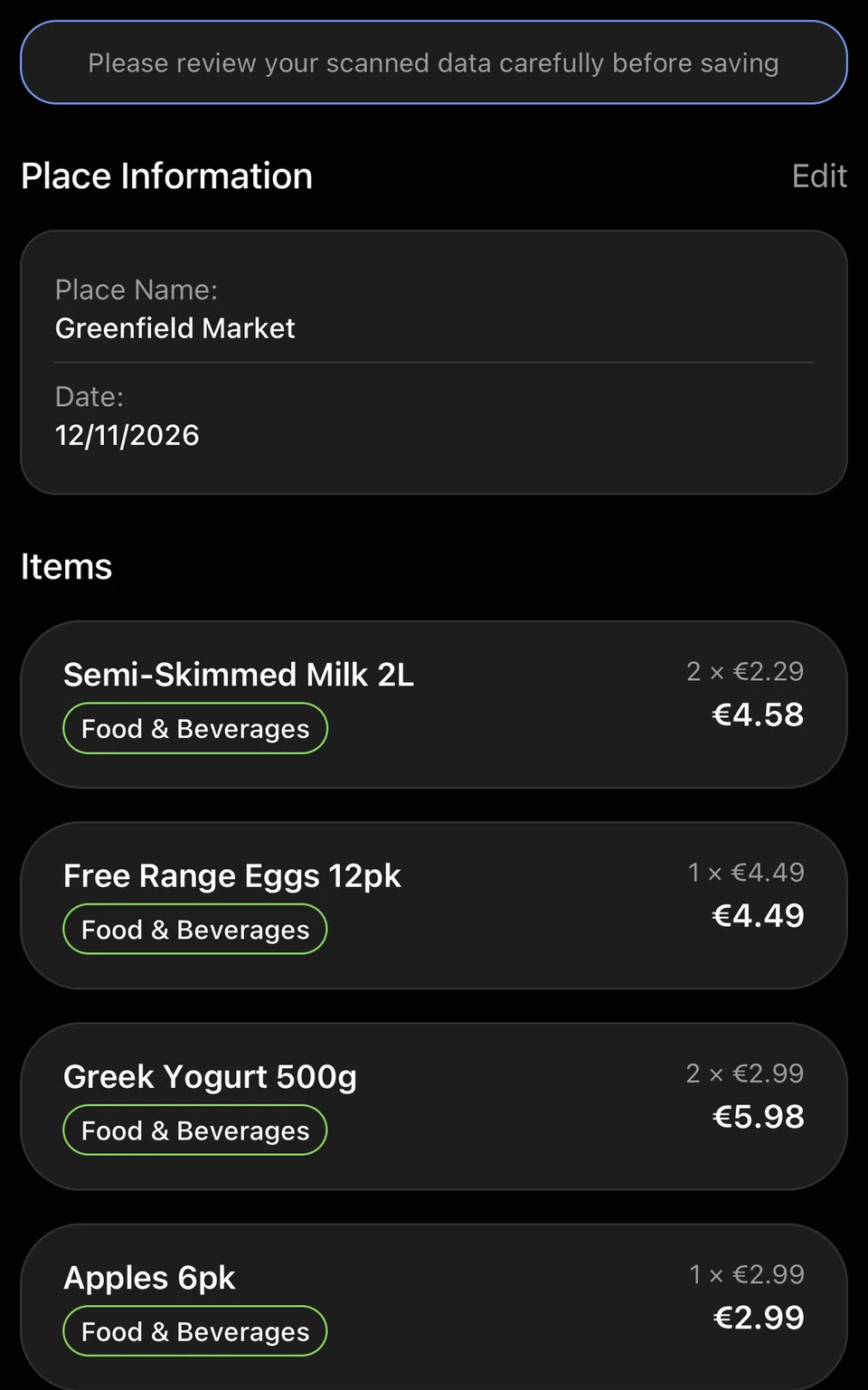
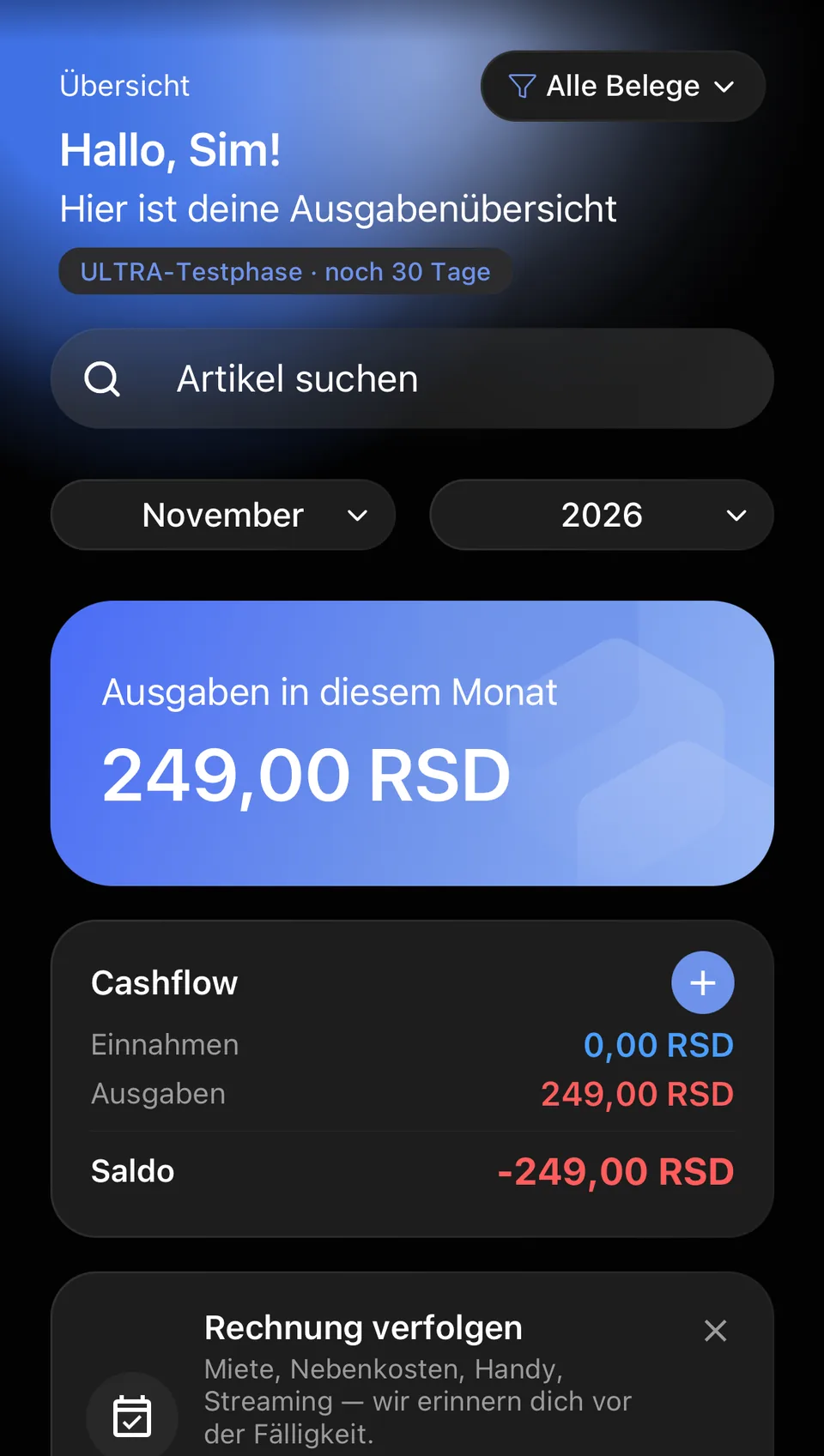
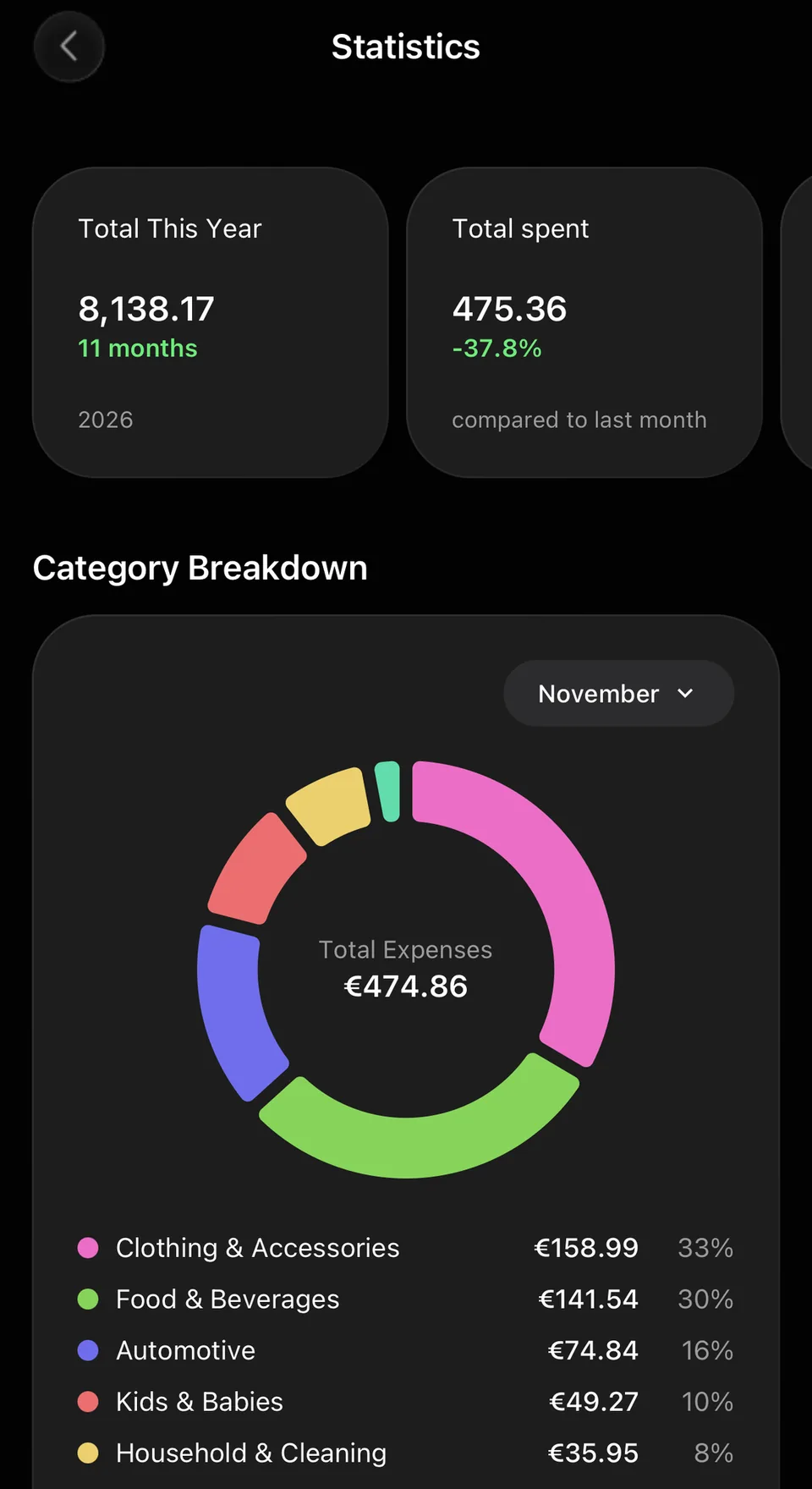
Multi-currency expense tracker: 50 currencies, one total
A multi-currency expense tracker for travel and life abroad: each receipt keeps the currency you paid in, and totals convert at the rate of the receipt’s date.
In this guide
ReceiptStorm keeps every receipt in the currency it was paid in and adds it to your totals in the one currency you choose, at the exchange rate of the receipt’s date. That makes it a simple multi-currency expense tracker for vacations, business trips and life abroad: you can add receipts in any of 50 currencies without changing a setting first, on every plan. Here’s how it works, step by step.
How ReceiptStorm works as a multi-currency expense tracker
Every foreign purchase involves two currencies and one exchange rate:
- The receipt’s own currency: the one printed on the receipt. Prices and the total are saved exactly as printed, and the receipt keeps showing them in that currency.
- Your currency for totals: one currency for the whole app. Home, Statistics, personal inflation, budget goals and Buy Soon all show amounts in it.
- The exchange rate of the receipt’s date: it links the two and is stored with the receipt, so a past month’s total stays put when rates move later.
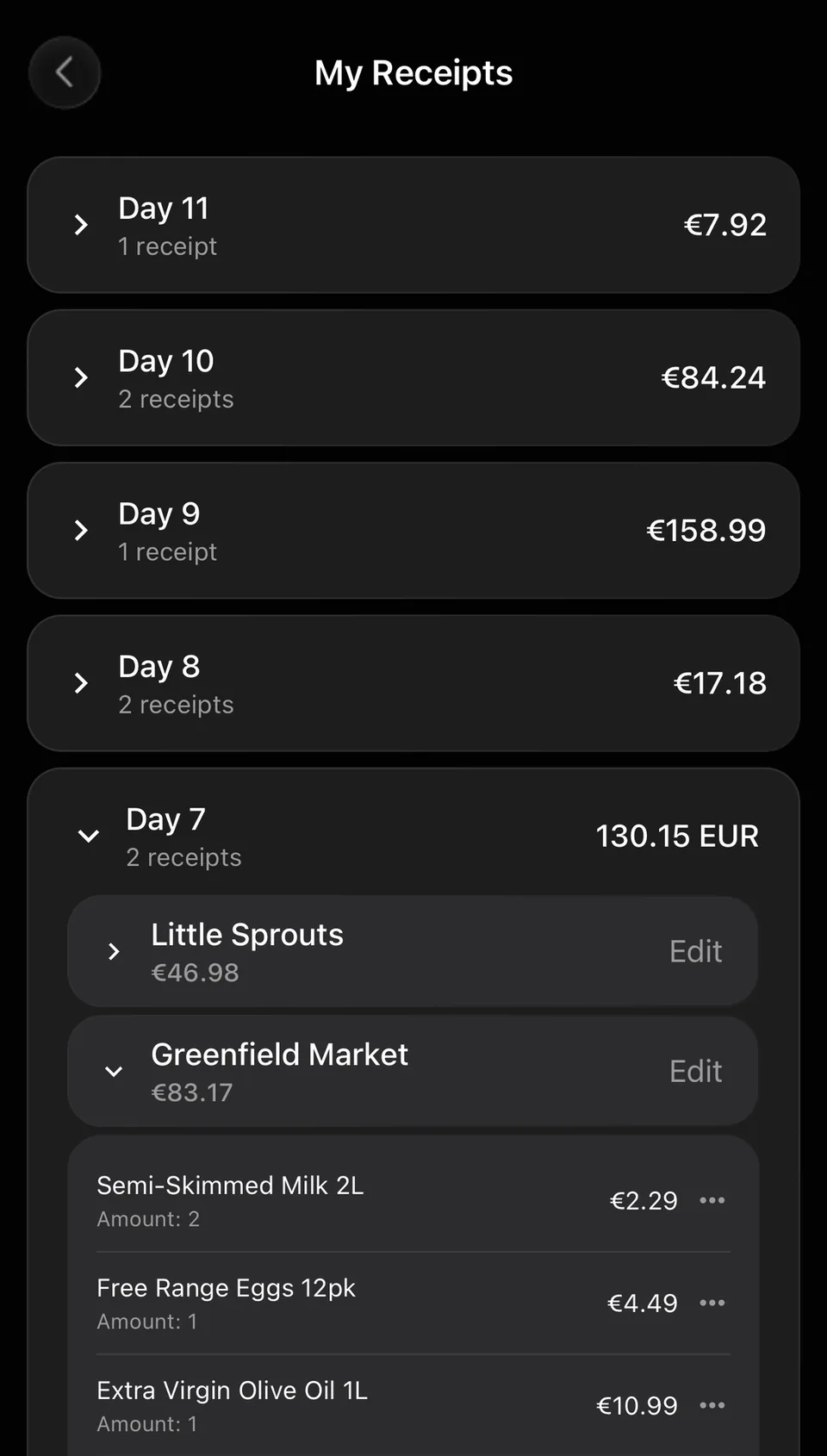
How to choose your currency for totals
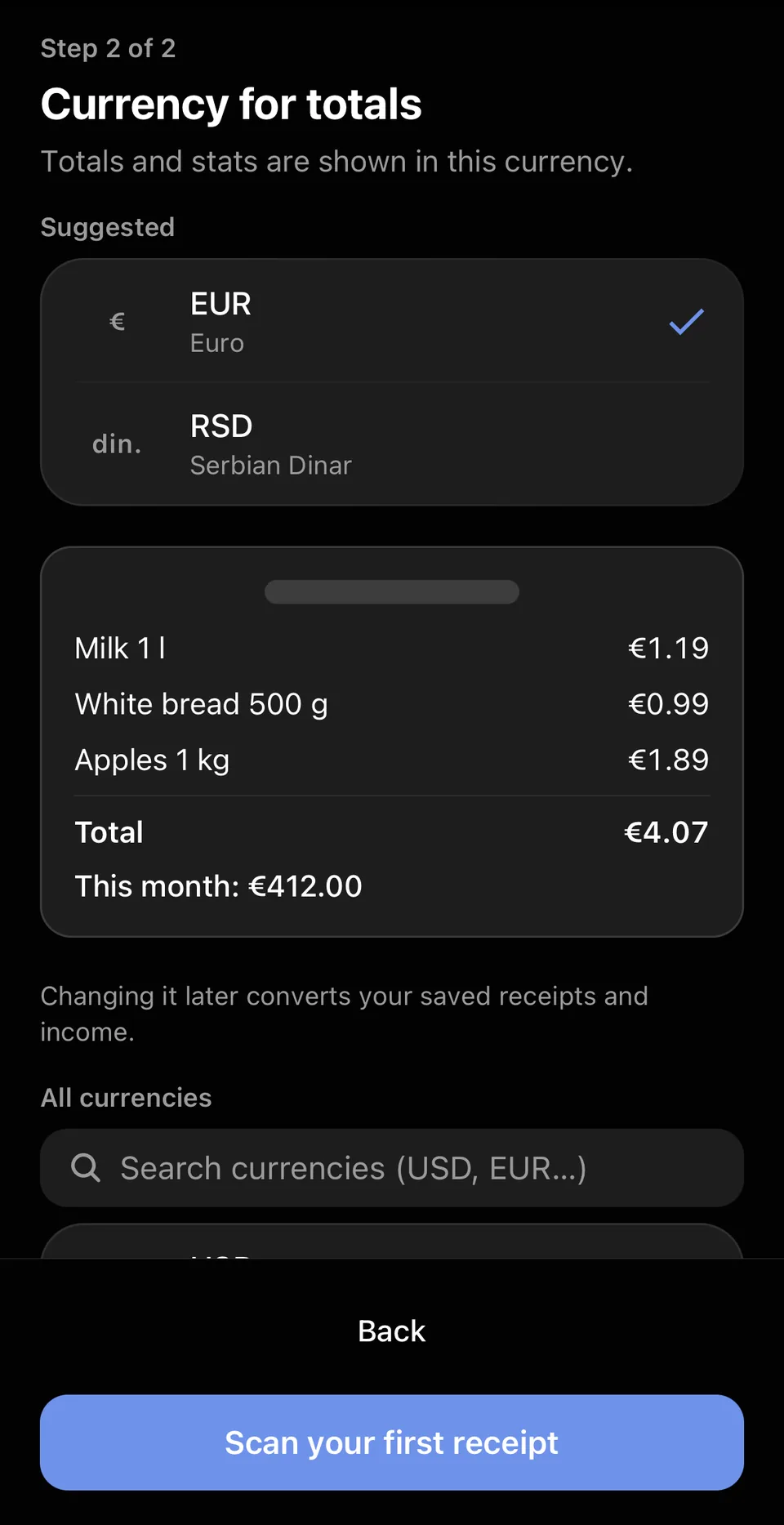
New accounts choose it in the second step of setup, right before the first scan, as described in how to start tracking your spending. You can change it later in Profile.
Pick it during setup
On Step 2 of 2, Currency for totals, tap one of the Suggested currencies or search All currencies. A preview shows how amounts will look, for example a €4.07 receipt and “This month: €412.00” in euros. Then tap Scan your first receipt.
Change it in Profile
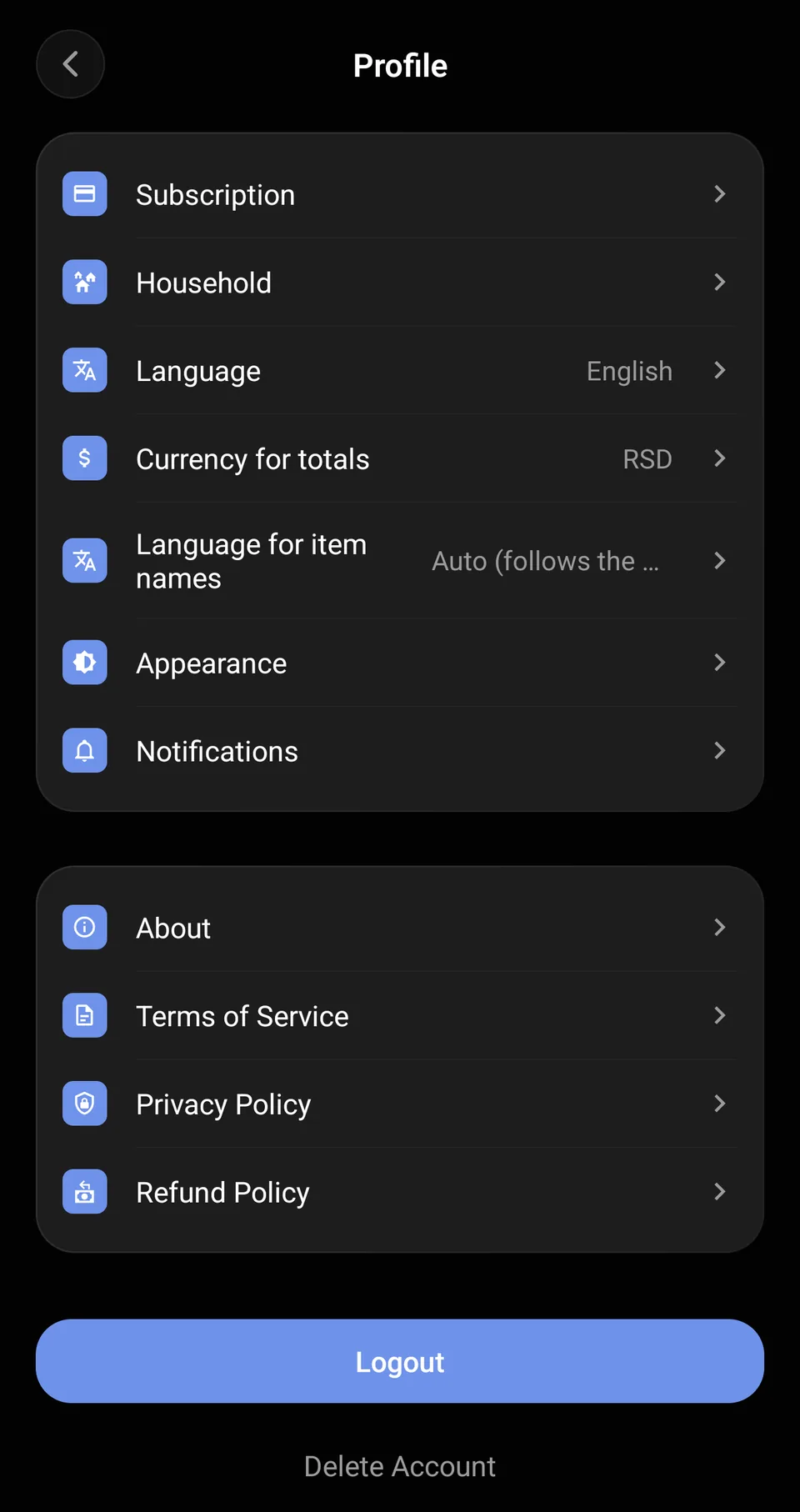
Go to Profile → Currency for totals, search for the currency (for example USD) and tap it.
Confirm the conversion
The app asks Show totals in USD? and tells you how many saved receipts it will convert, each at its own day’s rate. Tap Convert totals to USD.
Tip
Choose the currency you think in, usually the one you’re paid in. It only changes how totals are shown: every receipt keeps its own currency either way.
How to scan a receipt in a foreign currency
Every photo scan checks which currency the receipt is in, on every plan, so you don’t need to switch anything before a trip. For tips on clean, accurate scans, see how AI receipt scanning works.
Scan the receipt
On the Scan tab, tap Take Photo or Upload from Gallery. On the Free plan, each photo scan uses one of your 5 AI photo scans per calendar month (a scan that fails is refunded); Pro and Ultra include unlimited AI photo scans. Compare the plans.
Check the currency
In the result, the Currency row sits under the date. When the receipt clearly shows its currency, the row reads, for example, GBP · printed on the receipt.
Answer if the app asks
If the receipt shows no currency, more than one, or only a symbol such as $ that several currencies use, the app asks which one it is. Tap one of up to three suggestions, or Other… for the full list. Saving waits until you pick.
Save
A line such as “≈ €28.29 in your totals” previews the converted amount. Tap Save, and the app asks “Save this receipt in GBP? The amounts stay as printed.” Confirm with Save.
- Currency for totals
- EUR (Mila lives in Dublin)
- Receipt total, as printed
- £24.60
- Rate on the receipt’s date (example)
- £1 = €1.15
- Added to your totals
- ≈ €28.29
- Receipt in My Receipts
- £24.60, items in pounds
Home, Statistics and that day’s total in My Receipts count €28.29, while the receipt itself still says £24.60. The exact euro amount depends on the reference rate for that date.
How to enter a foreign receipt manually
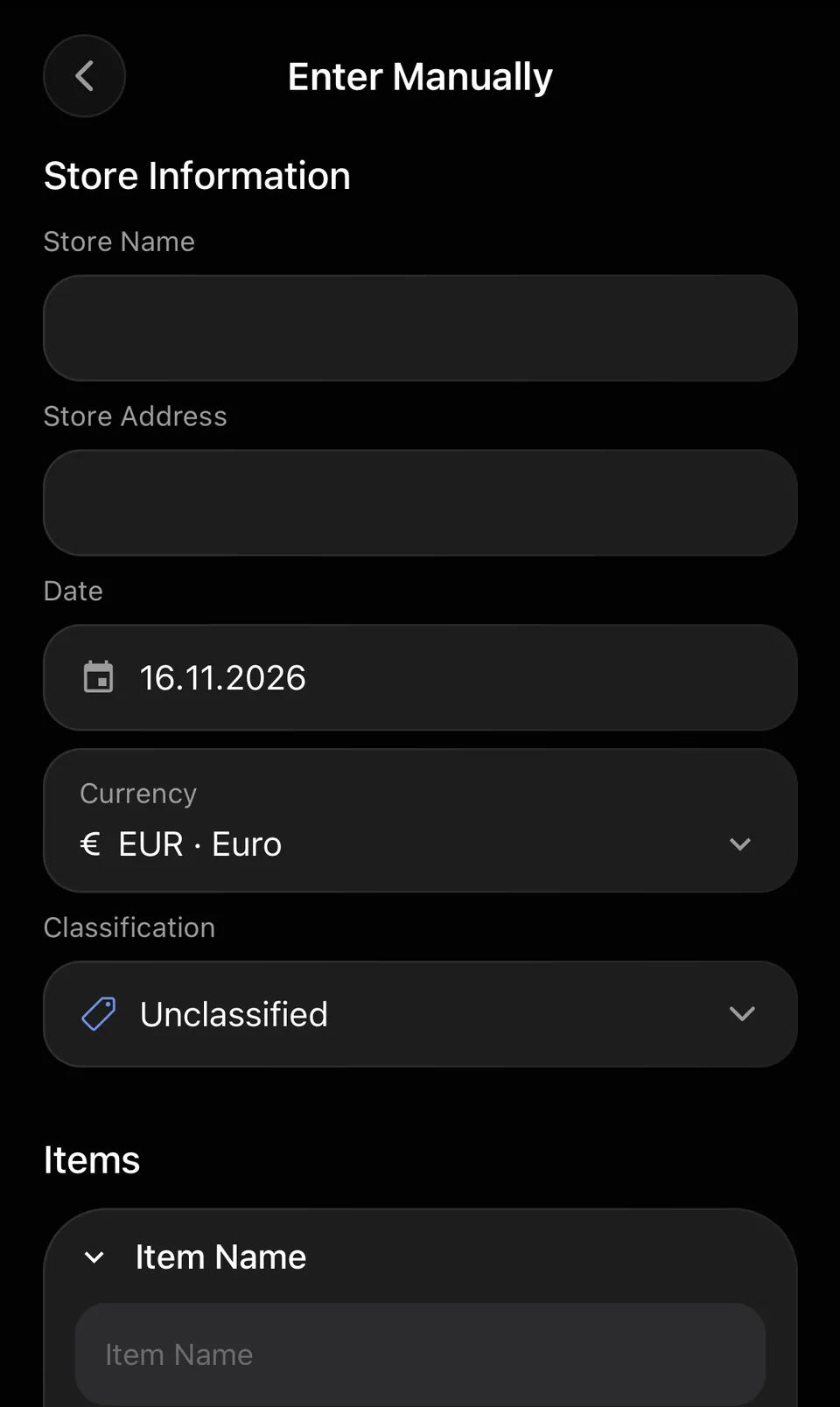
For a receipt that won’t scan, or a purchase without one, use Enter Manually on the Scan tab. Manual entry is unlimited on every plan.
Fill in the store and items
Add the Store Name, the Date and each item with its quantity and price, as printed.
Set the currency
The Currency field starts on your currency for totals. Tap it to choose another. Outside Serbia, if your phone’s time zone belongs to a country with a different currency, a Suggested chip offers that currency in one tap.
Save
When the currency differs from your currency for totals, an estimate such as “≈ €28.29 in your totals” appears under the field. Tap Save Changes, and the app asks “Save this receipt in GBP?”, so a wrong pick is easy to catch.
Which exchange rate ReceiptStorm uses
- The rate of the receipt’s date, not the day you save it. A receipt from last Tuesday uses last Tuesday’s rate.
- Reference rates from the European Central Bank, plus another source for currencies the ECB doesn’t publish, such as the Serbian dinar.
- No rate for that exact day, for example on a weekend: the most recent stored rate from up to 7 days earlier is used.
- No rate at all yet: the receipt is saved but left out of your totals until a rate arrives, and the app says “Saved. It joins your totals once today’s exchange rate is in.” A foreign amount is never counted one-to-one.
Good to know
These are reference rates, not your bank’s or card’s rate, so your bank statement can show a different amount. Income you add uses the rate of its own date, and bills keep their currency and convert at the latest rate whenever you view them.
How to change your totals currency or fix one receipt
Switching Currency for totals converts all your saved receipts and income, each at its own day’s rate. Keep three things in mind:
- It converts, it doesn’t relabel. A receipt saved in the wrong currency stays wrong until you fix that receipt.
- Budget goal amounts are plain numbers and aren’t converted, so update your budget goals after switching.
- In a shared household, every member sees the totals in their own currency.
To fix a receipt that was saved in the wrong currency:
Open the receipt
In My Receipts, open the day and tap Edit next to the receipt.
Pick the right currency
Tap Currency and choose the one printed on the receipt.
Confirm
The app asks Change the currency to GBP? and explains that the amounts stay as printed while your totals are recalculated at the rate of the receipt’s date. Tap Change currency.
Good to know
The currency can’t be changed on Serbian fiscal receipts, which are always in dinars, or on bill payments, which follow their bill. And if the very first receipt you scan on a new account is in another currency, the app offers Use GBP for totals or Keep EUR for totals; the receipt is saved in GBP either way.
See your own spending, item by item
ReceiptStorm is free to download for iPhone and Android.



Frequently asked questions
Does ReceiptStorm convert currencies automatically?
Yes. Each foreign receipt is converted into your currency for totals at the reference rate of the receipt’s date, and the receipt itself keeps its original amounts.
Which currencies can I use for my totals?
Any of 50, including USD, EUR, GBP, CHF, JPY, CAD, AUD, RSD, BAM, HUF, PLN, CZK, SEK, NOK, DKK, TRY, AED, INR, MXN, BRL and ZAR. Change it in Profile → Currency for totals.
Is currency detection only on paid plans?
No. Every photo scan detects the currency on every plan, and the app asks when it isn’t sure. Free includes 5 AI photo scans per calendar month (a failed scan is refunded), and manual entry is unlimited on every plan; see pricing.
Will the amount match my bank statement?
Not always. ReceiptStorm uses reference exchange rates, not your bank’s or card’s rate. For bills in a foreign currency, Ultra can add a line at your bank’s rate, learned from at least two bank charges you enter; see pricing.
What happens to my budget goals if I change currency?
They keep their numbers: a goal of 300 stays 300 in the new currency. Update them after you switch.
Can I fix a receipt saved in the wrong currency?
Yes. In My Receipts, tap Edit next to the receipt, then tap Currency and pick the right one. The amounts stay as printed and your totals are recalculated. Serbian fiscal receipts (always in dinars) and bill payments can’t be changed.