How AI receipt scanning works, with tips for accurate scans
Scan paper receipts with AI: what ReceiptStorm reads from a photo, what to check before saving, tips for accurate scans and the AI scans included in each plan.
In this guide
AI receipt scanning turns a photo of a paper receipt into data you can use: the store, the date, every item with its quantity and price, the total and the currency, with each item already sorted into a category. In the ReceiptStorm receipt scanner app you take the photo, check the result and save it. This guide explains what happens in between, what to look at before you save, and the habits that make scans more accurate.
How to scan a paper receipt with AI
If you haven't set up the app yet, start with the getting-started guide. Scanning itself takes four steps.
Open the Scan tab
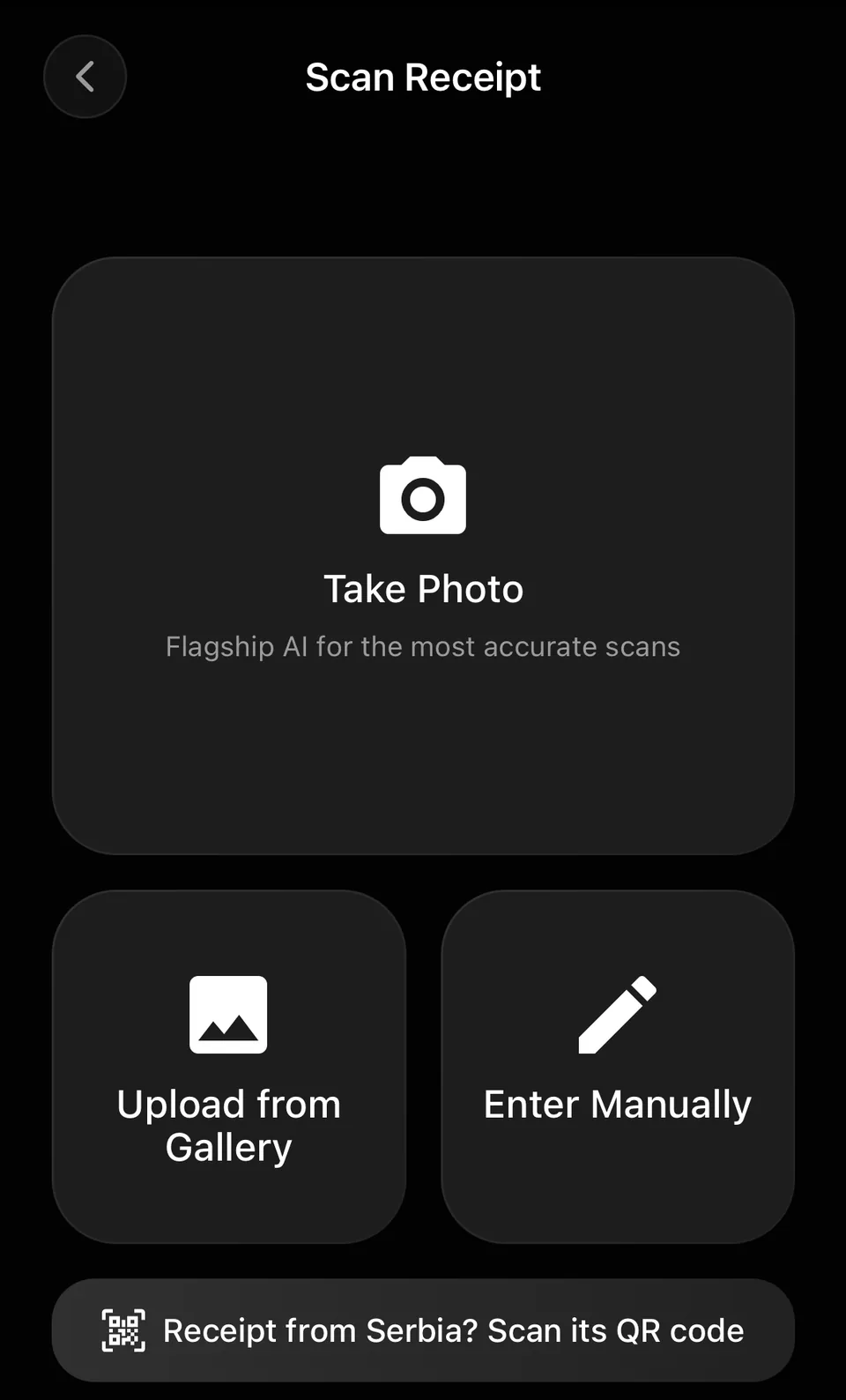
Tap Scan in the middle of the tab bar.
Take or choose a photo
Tap Take Photo to use the camera, or Upload from Gallery for a photo or screenshot already on your phone. Each receipt is one image.
Let the AI read it
Scanning receipt... shows while the receipt is read. The app notes that scanning may take 10 seconds or more, depending on the receipt.
Review and save
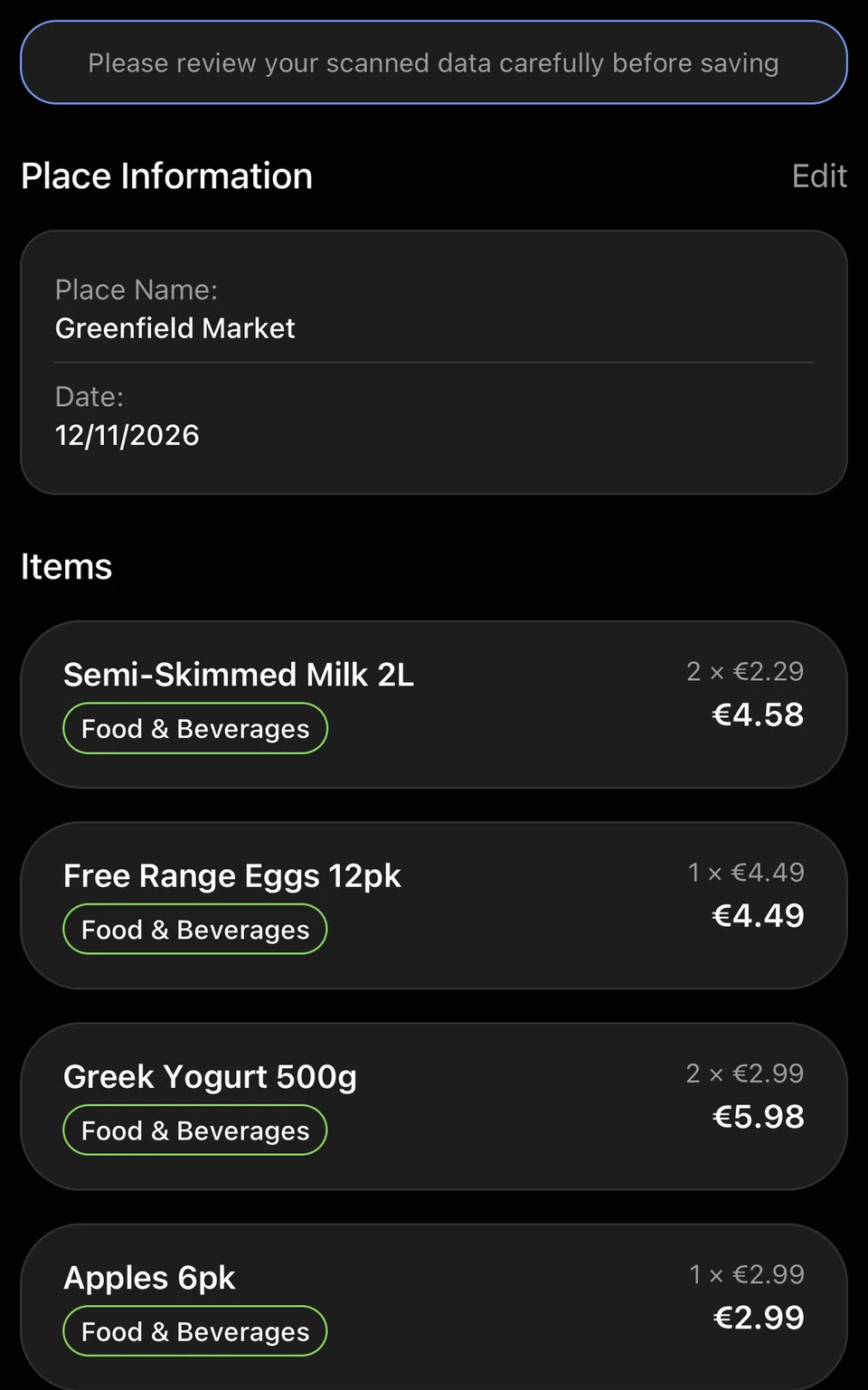
Compare the result with the paper, tap Edit to fix anything or Retake for a new photo, then tap Save.
How long a scan takes and how to cancel it
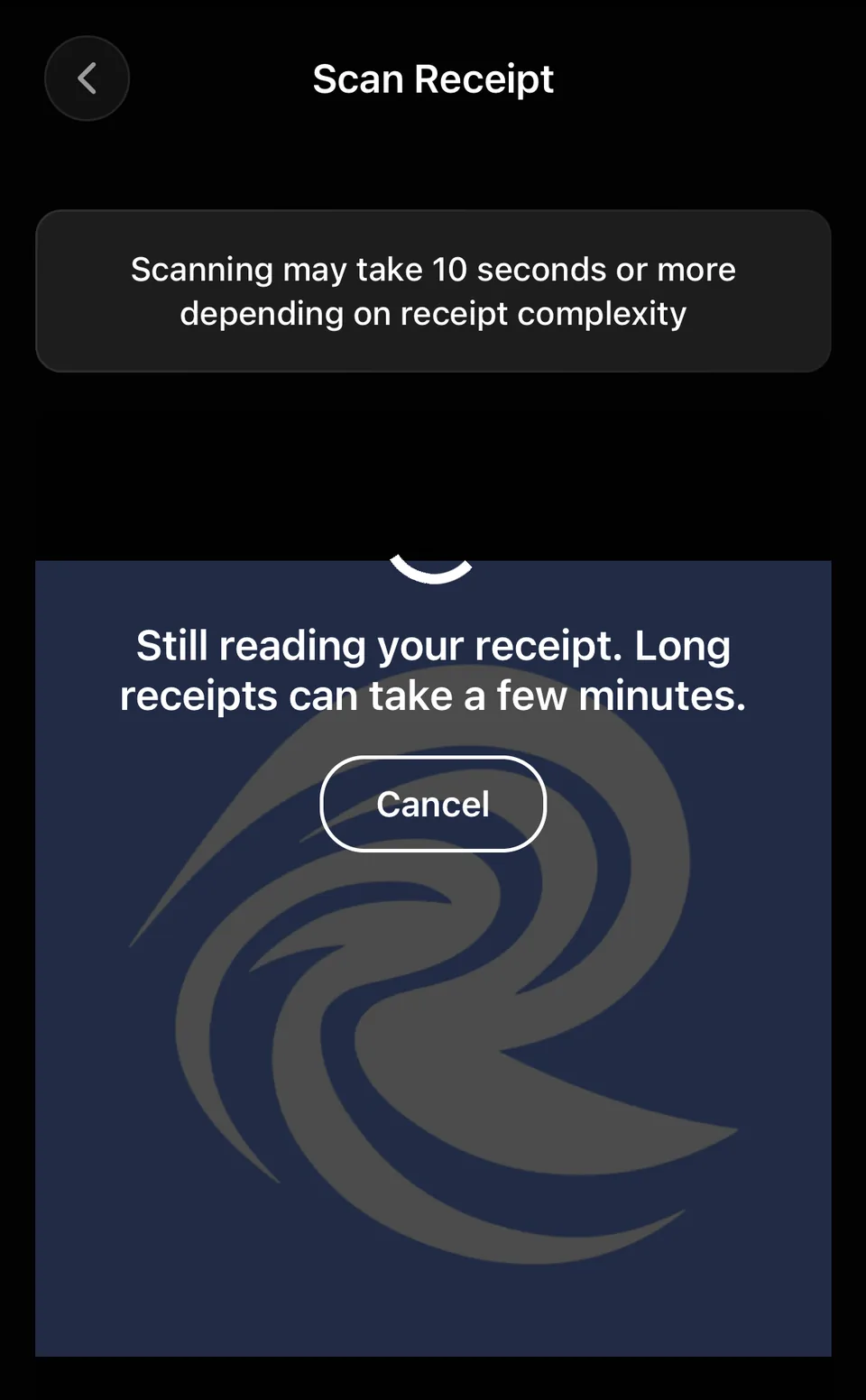
While the AI reads the receipt, your photo stays on screen under a dark overlay with a Cancel button. Long receipts take longer to read, and the app tells you what's happening:
- After 45 seconds, the overlay text changes to Still reading your receipt. Long receipts can take a few minutes. The scan keeps going, so you can wait or cancel.
- You can tap Cancel at any time during the scan. It takes you back to the scan options, and the app confirms Scan cancelled.
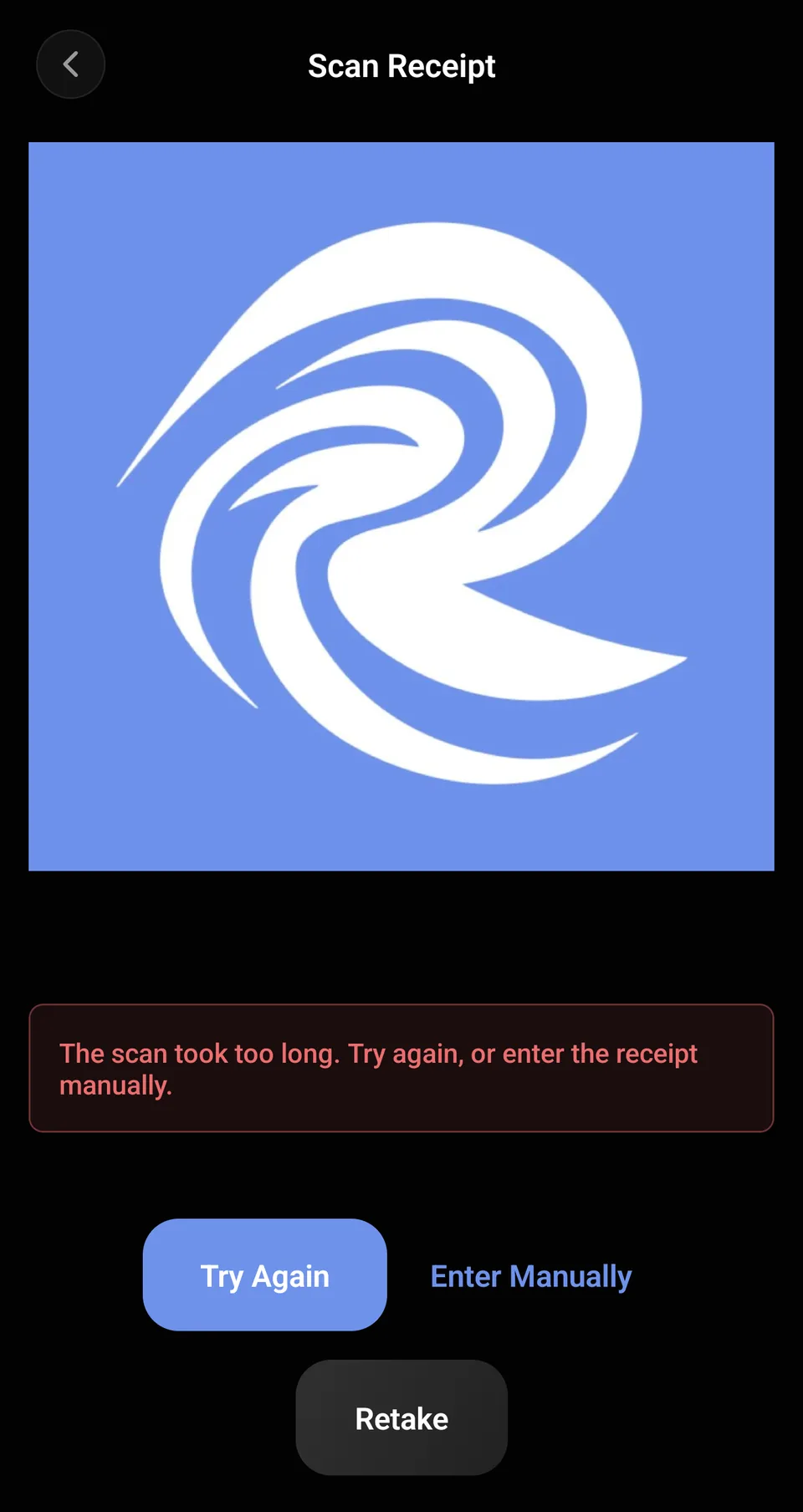
- After about 200 seconds, just over three minutes, the app stops waiting. The photo stays, with the message The scan took too long. Try again, or enter the receipt manually. Tap Try Again to send the same photo once more, Enter Manually to type the receipt in, or Retake for a new photo.
Good to know
On Free, a scan you cancel or that takes too long can still count as one of your 5 AI scans: once the photo has been sent, the scan may still finish on our servers, and only a scan that fails is refunded. Each tap on Try Again can use another scan.
What the AI reads from a receipt
From one photo the AI picks up the store name and address, the date, each item's name, quantity and unit price, the total and the currency. It then gives every item a category, such as Food & Beverages or Household & Cleaning, and writes item names in your Language for item names, so a receipt from a trip abroad still reads in your language. Brand names are meant to stay as printed.
Standard scans also compare item names with products you've bought before, so the same milk keeps the same name from one receipt to the next. That keeps your statistics and price history tidy.
- Store and date
- Greenfield Market, 12/11/2026
- Semi-Skimmed Milk 2L
- 2 × €2.29 = €4.58
- Free Range Eggs 12pk
- 1 × €4.49 = €4.49
- Greek Yogurt 500g
- 2 × €2.99 = €5.98
- Apples 6pk
- 1 × €2.99 = €2.99
The four lines add up to €18.04, all in Food & Beverages. The milk is saved as 2 at €2.29 each, not as one €4.58 item, which is what lets the app compare prices fairly from one receipt to the next.
What to check before you tap Save
- The date. If no date can be read, the app uses today's and tells you: Couldn't read the date on the receipt — today's date is used. A short date such as 12/11/2026 is read day first (12 November) unless your phone's time zone is in a month-first country such as the United States.
- The year. When a date is more than a year old or later than tomorrow, Check the year appears under it. A receipt with the wrong year ends up outside the month it belongs to.
- Quantities and prices. Each line is quantity × unit price. On long or faded receipts, give the digits a second look.
- Categories. In the editor, Select Category moves an item to any of the 13 categories.
- Duplicates. If you already saved this receipt, the result says This receipt has already been saved. Saving is disabled.
How the scan recognizes the currency
Every photo scan, on every plan, checks which currency the receipt is printed in. When it's certain, the currency is marked printed on the receipt. When it isn't, the app asks instead of guessing: Which currency is this receipt in?, or a variant for receipts that show no currency or more than one. Tap one of the suggested currencies or Other…, and for a foreign receipt a line starting with ≈ shows what it adds to your totals. Until you choose, saving shows Pick the receipt's currency before saving. More in receipts in other currencies.
How many AI scans each plan includes
| Plan | AI photo scans | Premium scans |
|---|---|---|
| Free | 5 per calendar month, refilled on the 1st | Not included |
| Pro | Unlimited (fair use) | Not included |
| Ultra | Unlimited (fair use) | 300 every 30 days, then standard scans |
- Only Take Photo and Upload from Gallery count. Serbian fiscal and IPS QR codes and manual entry never do.
- A scan is counted when it starts and refunded if it fails. A scan you cancel or that takes too long can still count. Retaking a photo after a successful scan counts as a new scan.
- On Free, Home shows how many of your 5 you've used. When they're gone, the app says Free AI scans used up before the camera opens; Serbian QR codes and manual entry stay unlimited.
- In a household, the owner's plan covers every member. On Free, all members share the owner's 5 scans a month.
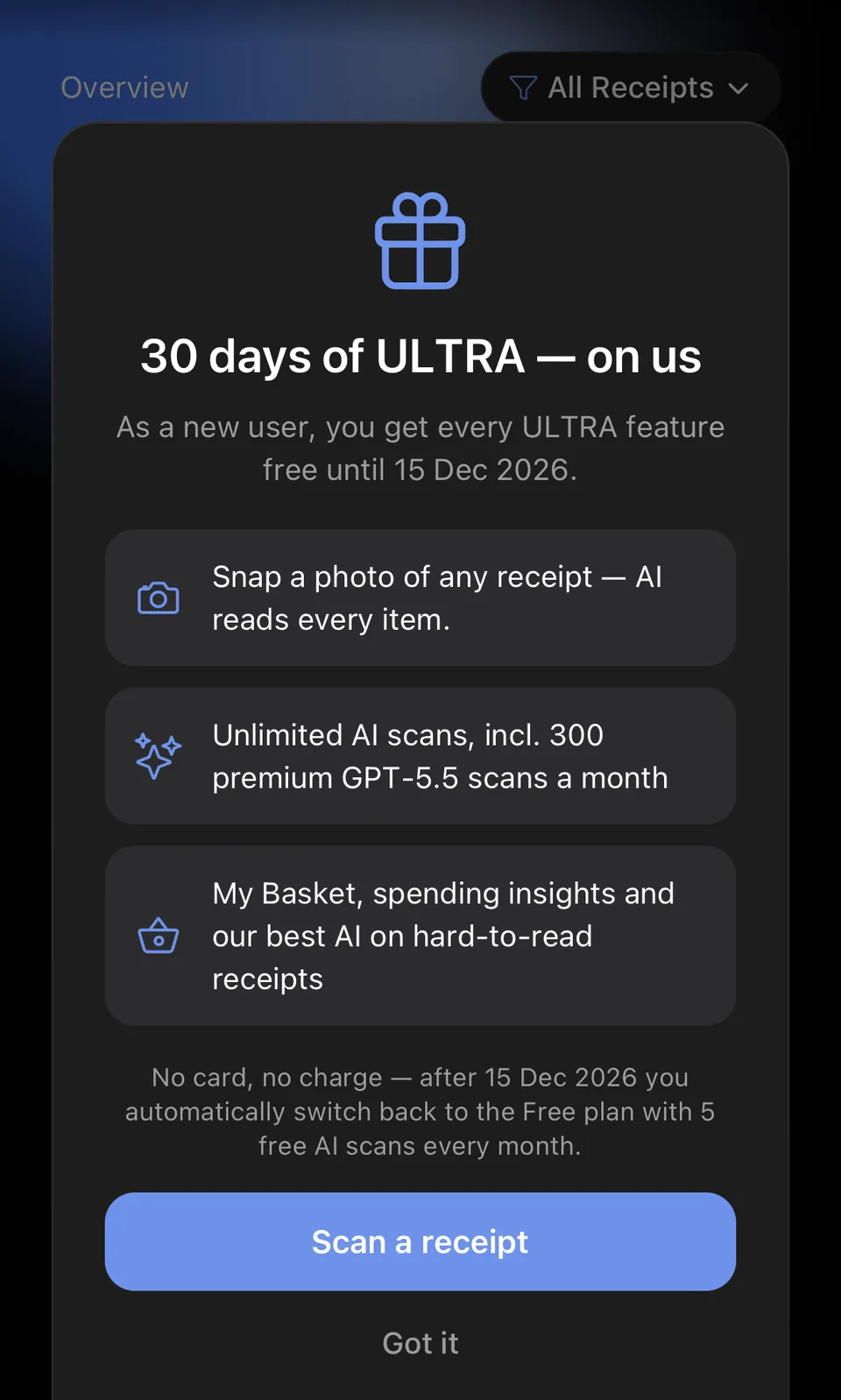
Premium scans read the photo in a single pass with our most accurate model, which helps with faded or hard-to-read receipts. Standard scans read the text first, then an AI pass names and sorts the items. If a premium scan fails or the 300 are used up, the app switches to standard scanning by itself, and there's no counter of premium scans left. New accounts get a 30-day Ultra trial without a card. Compare everything in Free, Pro or Ultra or on the pricing page.
Tips for accurate receipt scans
- Fit the whole receipt in the frame, from the store name at the top to the total at the bottom.
- Lay it flat on a plain surface and smooth out folds and curls.
- Use even light. If glossy paper shines, move away from the lamp or window rather than tilting the phone.
- Hold the phone straight above the receipt, not at an angle.
- Scan one receipt per photo.
- Faded, crumpled or very long receipts are harder to read: check those line by line, or type them in with Enter Manually.
Tip
In Serbia, scan the QR code instead: fiscal receipt QR codes bring the items and prices from the tax authority's record and never use AI scans. A photo that shows a readable Serbian fiscal QR code also uses the official data, without using an AI scan.
What happens to your receipt photo
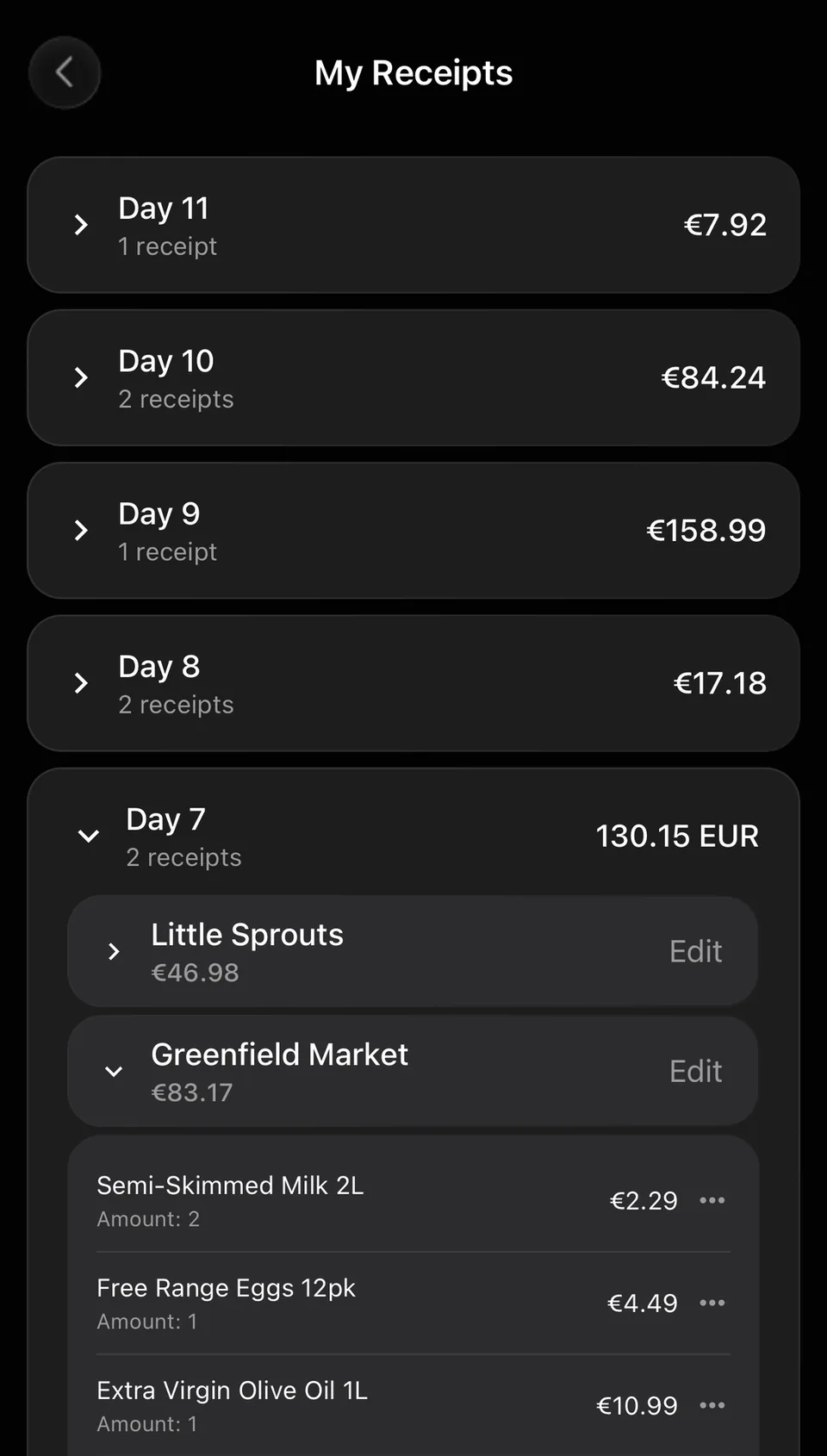
The photo is sent to third-party OCR and AI services only to be read, and ReceiptStorm doesn't store it. What stays is the data: store, date, items, prices and currency. There's no PDF or email import, and each receipt is a single photo, so a very long receipt can't be pieced together from several shots.
See your own spending, item by item
ReceiptStorm is free to download for iPhone and Android.



Frequently asked questions
How accurate is AI receipt scanning?
It reads most printed receipts well, but faded, crumpled or very long receipts can cause mistakes. That's why you see every line before saving and can correct it.
What if a receipt scan takes too long?
Long receipts can take a few minutes. After 45 seconds the app says it's still reading, and you can tap Cancel at any time. After about 200 seconds it stops waiting and offers Try Again, Enter Manually and Retake.
Does a failed scan use up one of my free AI scans?
No. A scan is counted when it starts and refunded if it fails. A scan you cancel, or one that takes too long, can still count because it may finish on our servers. A retake after a successful scan counts as a new one.
Can I scan a receipt from my photo gallery?
Yes. Upload from Gallery reads a photo or screenshot that's already on your phone, one image per receipt. It counts as an AI photo scan.
Can the app read receipts in a foreign currency?
Yes. Every photo scan on every plan, not just Ultra, checks the currency printed on the receipt and asks you when it isn't sure. The receipt keeps its own currency and is converted into your currency for totals.
Are my receipt photos stored?
No. The photo is only sent to be read; the app keeps the store, date, items, prices and currency.