Expense tracker in 39 languages, with item names in yours
ReceiptStorm is an expense tracker in 39 languages: pick the app language, choose the language item names are saved in and scan receipts printed in others.
In this guide
ReceiptStorm is an expense tracker in 39 languages, and the language your item names are saved in is a separate setting. So you can run the app in German, keep item names in English and scan a receipt printed in Serbian, and everything stays readable. Both settings are in Profile and work the same on every plan.
An expense tracker in 39 languages: the full list
The app’s menus, buttons and messages come in these 39 languages: English, Serbian (Latin script), German, French, Spanish, Italian, Portuguese, Dutch, Greek, Polish, Czech, Slovak, Hungarian, Romanian, Bulgarian, Croatian, Slovenian, Bosnian, Macedonian, Albanian, Turkish, Russian, Ukrainian, Finnish, Swedish, Norwegian, Danish, Icelandic, Estonian, Latvian, Lithuanian, Maltese, Japanese, Korean, Chinese (Simplified), Thai, Vietnamese, Indonesian and Malay.
Item names have four more options: Montenegrin (Latin), Chinese (Traditional), Arabic and Hebrew. These four are for item names only; the app itself has no right-to-left layout.
How to change the app language
On first start, ReceiptStorm uses your phone’s language if it’s one of the 39, and English otherwise. To pick another one:
Open Language
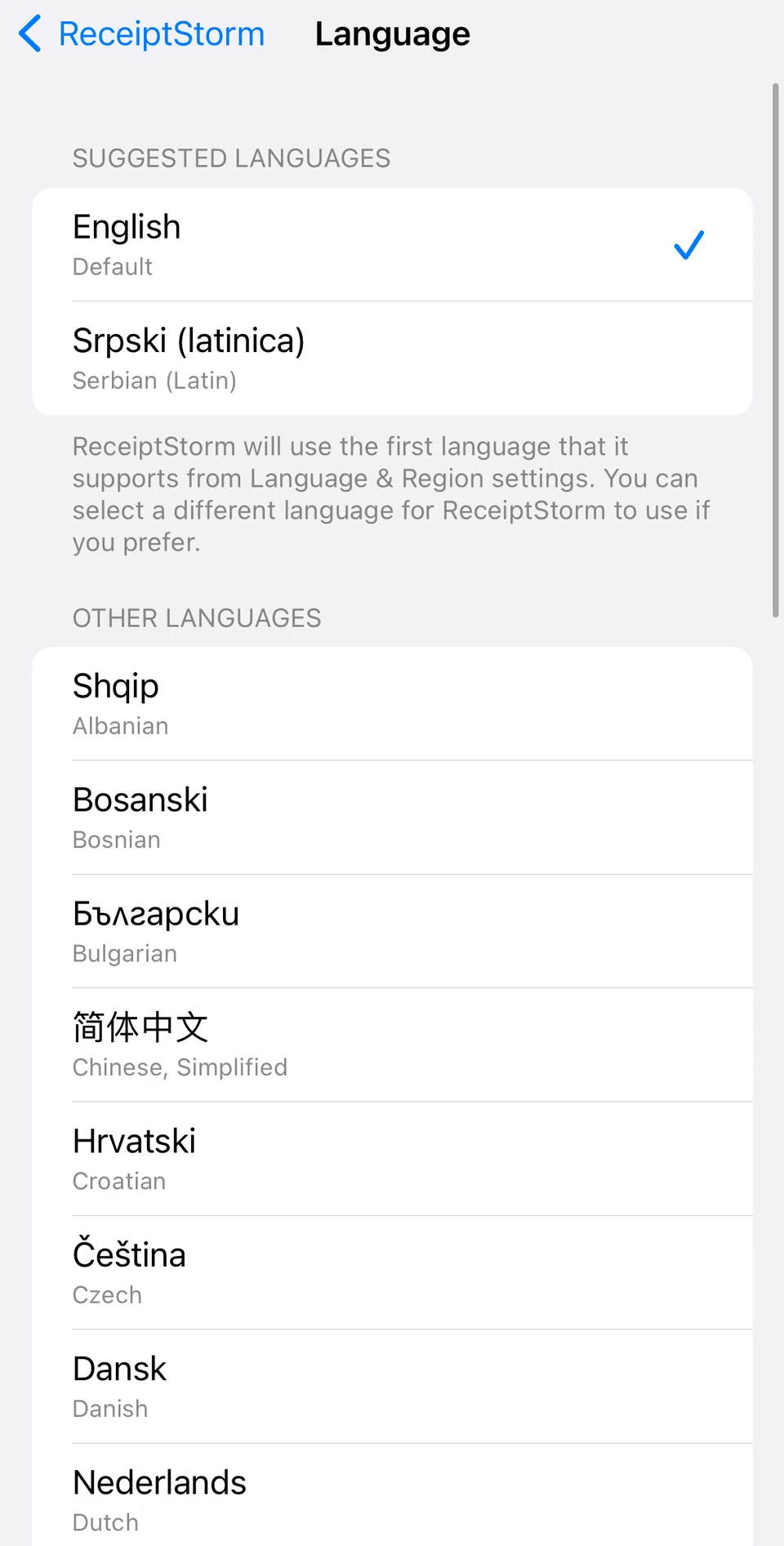
Tap Profile, then Language.
Find your language
Scroll or use Search languages. Each row shows the language’s own name, such as Deutsch or Srpski (latinica), with its name in your current language underneath.
Tap it
The app switches right away and takes you back to Profile. Your receipts, amounts and currency stay exactly as they were.
The hint on that screen explains the link to item names: while Language for item names is on Auto, new item names follow the app language too.
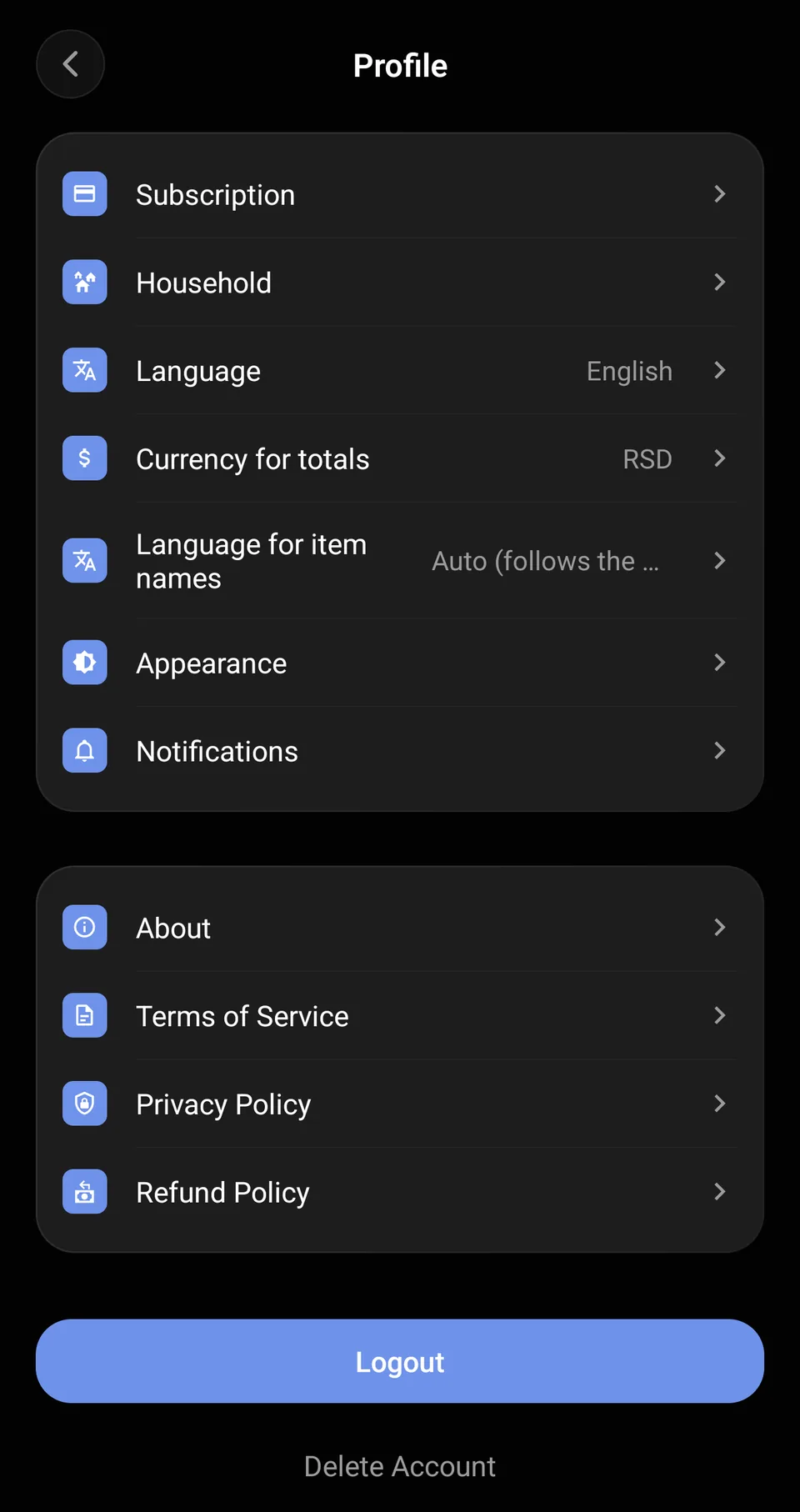
How to change the app language in iPhone Settings
On iPhone, you can also change ReceiptStorm’s language outside the app, in iPhone Settings. The list there offers the same 39 languages.
Open ReceiptStorm in Settings
Open the iPhone Settings app and tap ReceiptStorm. On recent iOS versions, you’ll find it under Apps.
Pick a language
Tap Language and choose one from the list. If there’s no Language option, update ReceiptStorm, or use Profile → Language in the app.
Go back to the app
ReceiptStorm opens in the language you picked. Your receipts, amounts and currency stay as they were.
Which choice wins? The one you made last, in the app or on the phone:
- A language you pick in Profile stays, even if iPhone Settings still shows the one from before. To switch back to that one, pick it in Profile: tapping it in iPhone Settings changes nothing.
- When the language your phone uses for ReceiptStorm changes, because you picked one in iPhone Settings or changed the phone’s own language, the app switches to it the next time it starts, replacing your pick in Profile. On Android, the same goes for the phone’s language.
- A phone language that isn’t one of the 39 app languages, such as Arabic, never replaces your choice: the app keeps the language you chose last, in the app or on the phone, or uses English if you never chose one.
- While Language for item names is on Auto, new item names follow the app language, whether you set it in the app or on the phone, because each scan uses the language the app is in at that moment. If you picked a specific language for item names, it stays, and item names you’ve already saved never change.
What the language for item names does
When ReceiptStorm reads a receipt, it translates the item names into your Language for item names and saves them that way. Your receipts, item statistics and price history then read in one language, whatever language the receipts were printed in. Brand names are meant to stay as they are.
- Auto is the default and follows the app language, shown as “Same as app language (English)”.
- Pick a specific language when you want something different, for example the app in English but item names in Serbian, or the other way round.
- A change affects new receipts only. Item names you’ve already saved keep their language.
Good to know
Switching the item-name language after months of scanning can split one product into two names, such as “Milk 1 l” and its translation, in item statistics and personal inflation. Pick the language you want early, ideally during setup.
How to set the language for item names
During setup
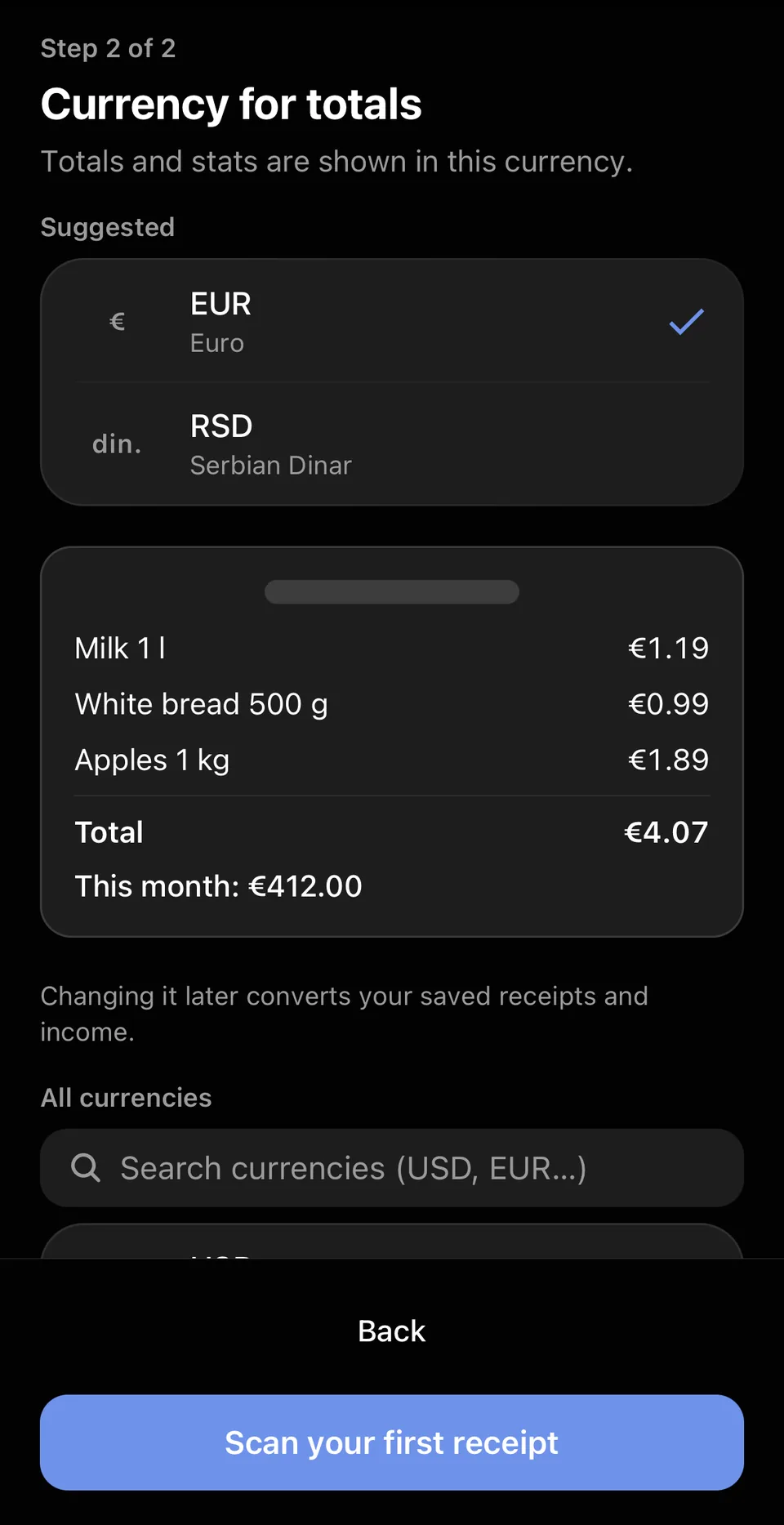
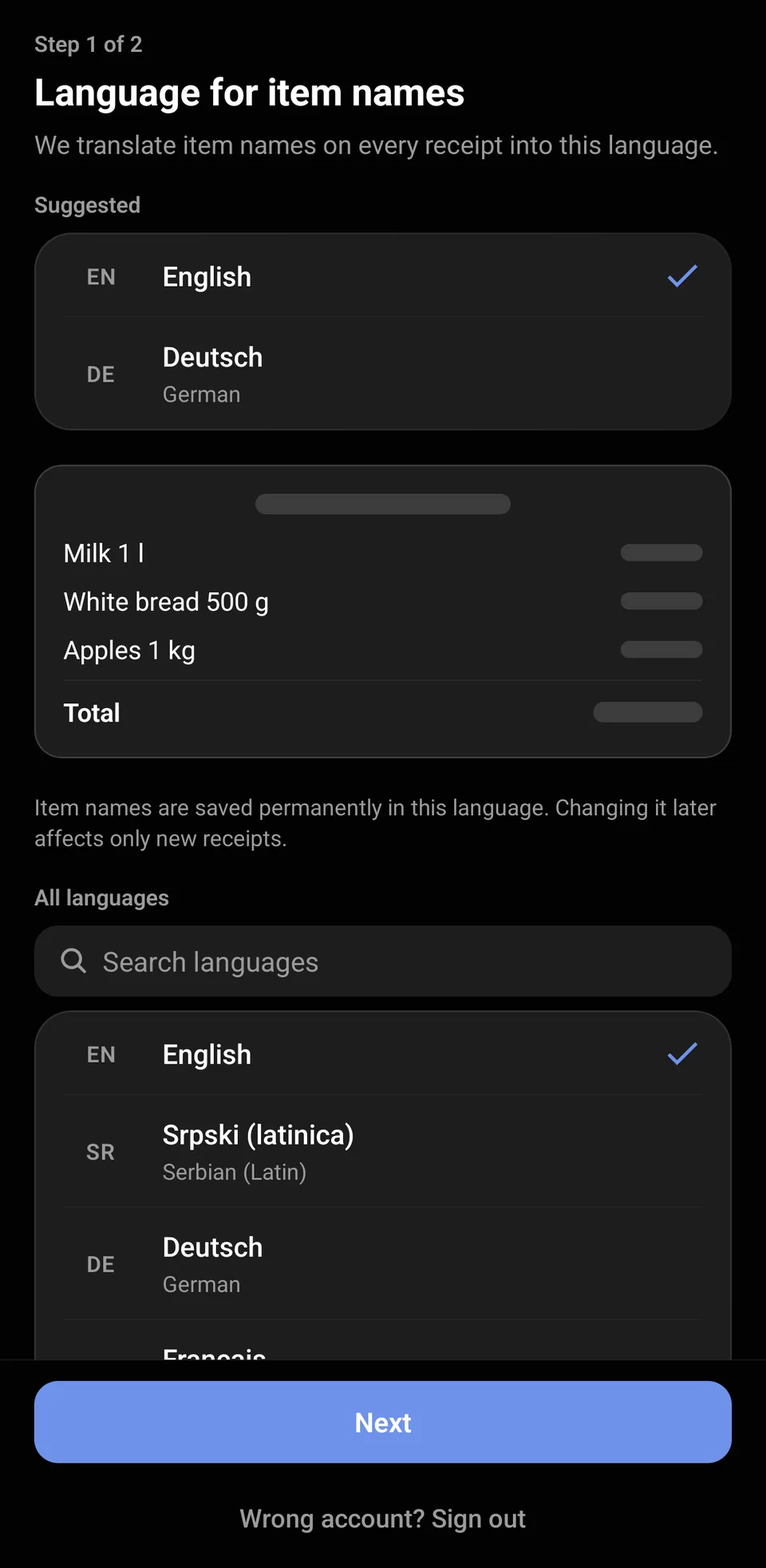
New accounts start with Step 1 of 2: Language for item names. Pick one of the Suggested languages or search the full list, check the example receipt and tap Next. The rest of the first steps are in how to start tracking your spending.
Later, in Profile
Go to Profile → Language for item names and choose Auto or any of the 43 languages.
Scan a new receipt
Receipts you add from now on use the new language. Older receipts keep their item names.
Not sure which language to pick? Choose the one you read fastest when you skim a list of items. If you live abroad, you might keep the app in your own language and save item names in the local one, so they match the shelf labels, or the other way round. In a shared household, agree on one item-name language: each member has their own setting, and mixed languages can split one product into two names in the shared statistics.
What happens with receipts in another language
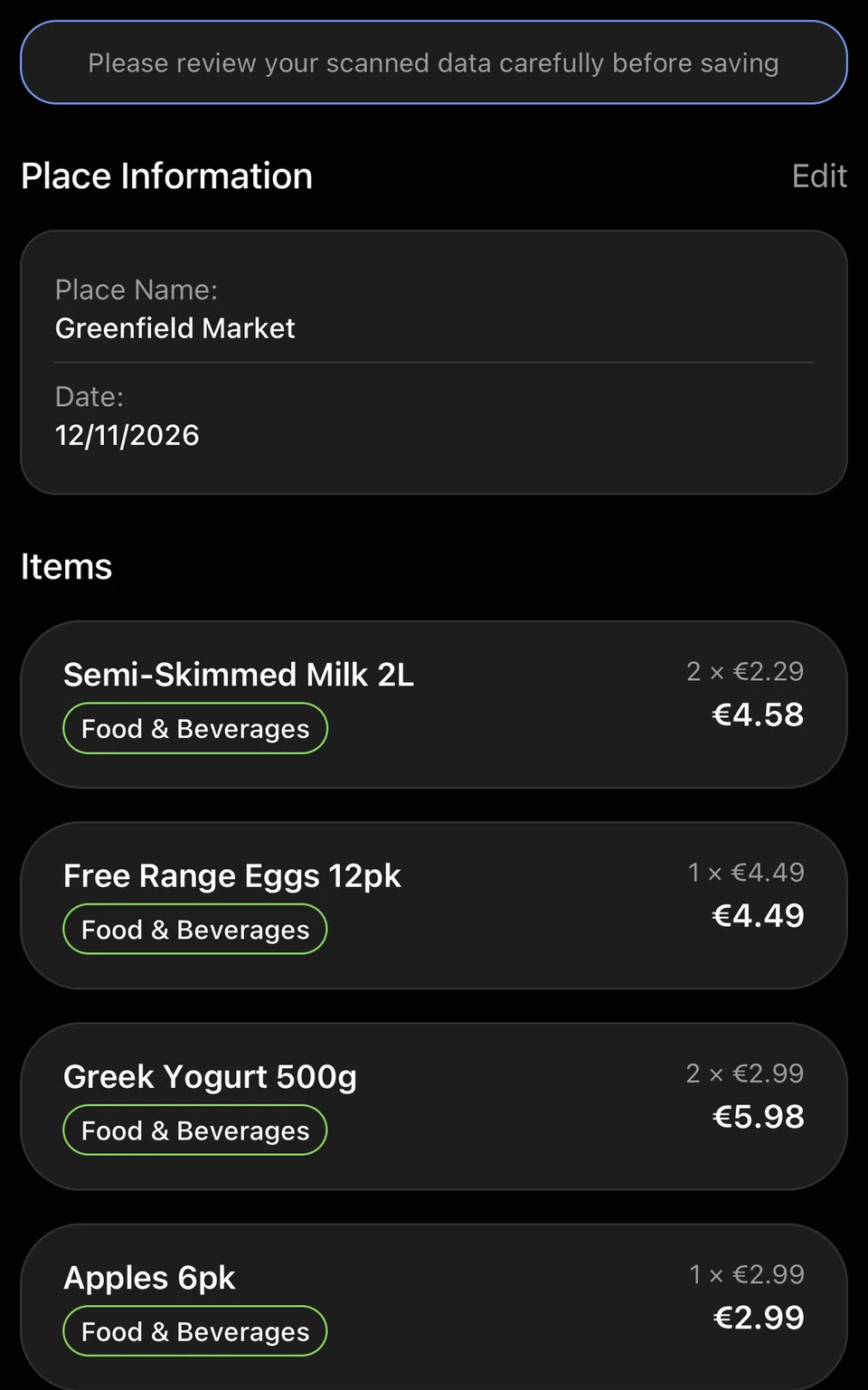
Photo scans read receipts printed in other languages and alphabets, translate the item names into your chosen language and save them that way. Check the names in the result before you save, as with any scan; how AI receipt scanning works explains the rest of the process. Serbian fiscal receipts scanned by QR code work the same way: prices, quantities and the official receipt text come from the tax authority as issued, while the item names are cleaned up and translated into your language for item names. Serbian item names are always saved in Latin script, even when the receipt is printed in Cyrillic.
The original is never lost on a Serbian fiscal receipt: in My Receipts, open the day and the receipt, then tap Show Fiscal Receipt to read the official text exactly as it was issued, whatever language your item names are in.
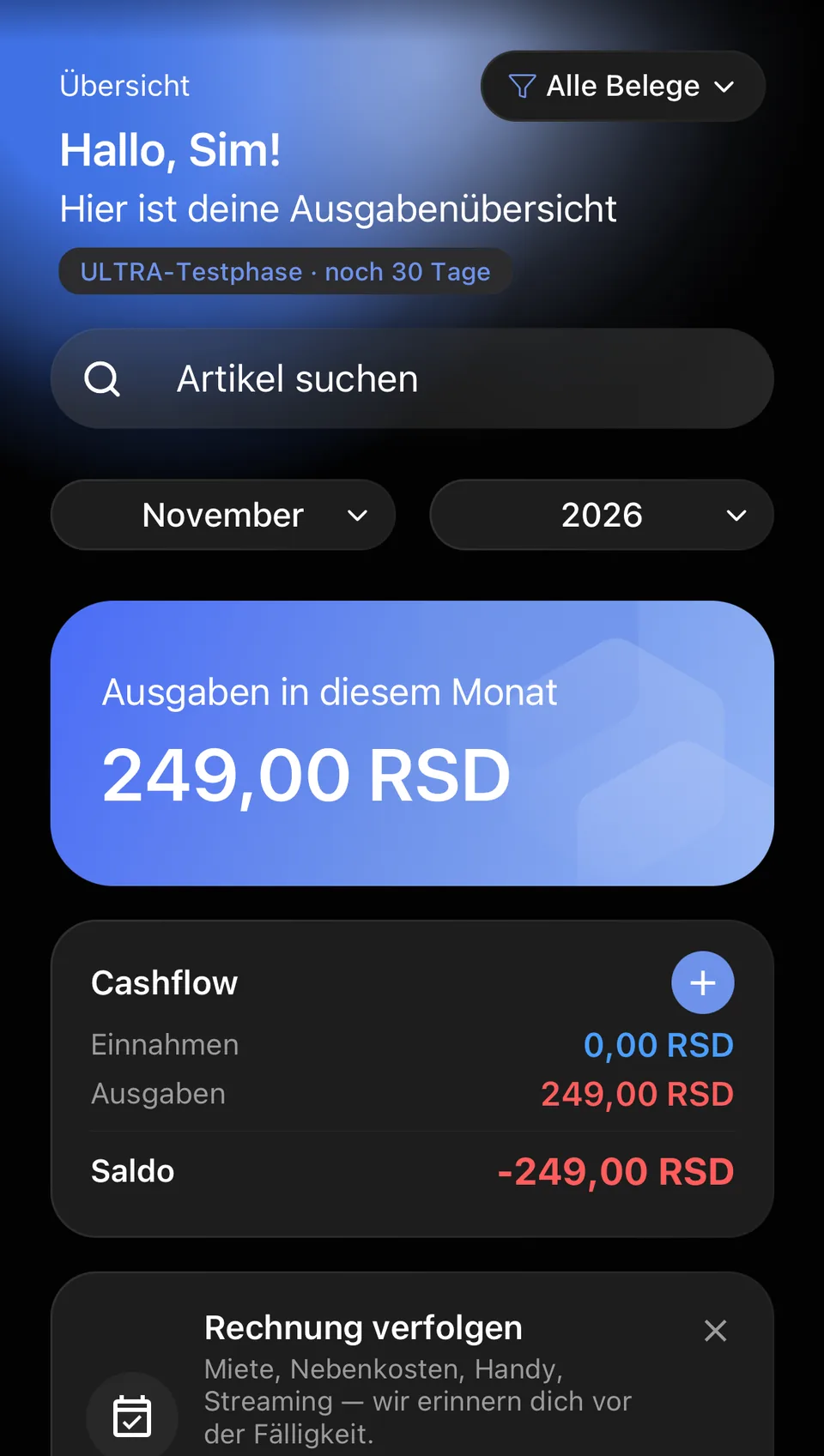
- App language
- Deutsch, so Home reads “Ausgaben in diesem Monat”
- Currency for totals
- RSD, so the month shows 249,00 RSD
- Language for item names
- English, pinned instead of Auto
- New item names
- In English, like “Milk 1 l”
- Category labels
- In German, like “Lebensmittel & Getränke”
Switch the app to Serbian and the buttons and category labels change at once, while the item names stay in English because they’re pinned. The amounts stay in dinars too, since currency is a separate setting; see receipts in other currencies.
What else follows the app language
- Categories: the 13 categories are shown in the app language, so they change when you switch it. Food & Beverages in English is Hrana i piće in Serbian.
- Push notifications, such as bill reminders, arrive in your app language.
- Emails for confirming your address, resetting your password and subscription updates are in English only.
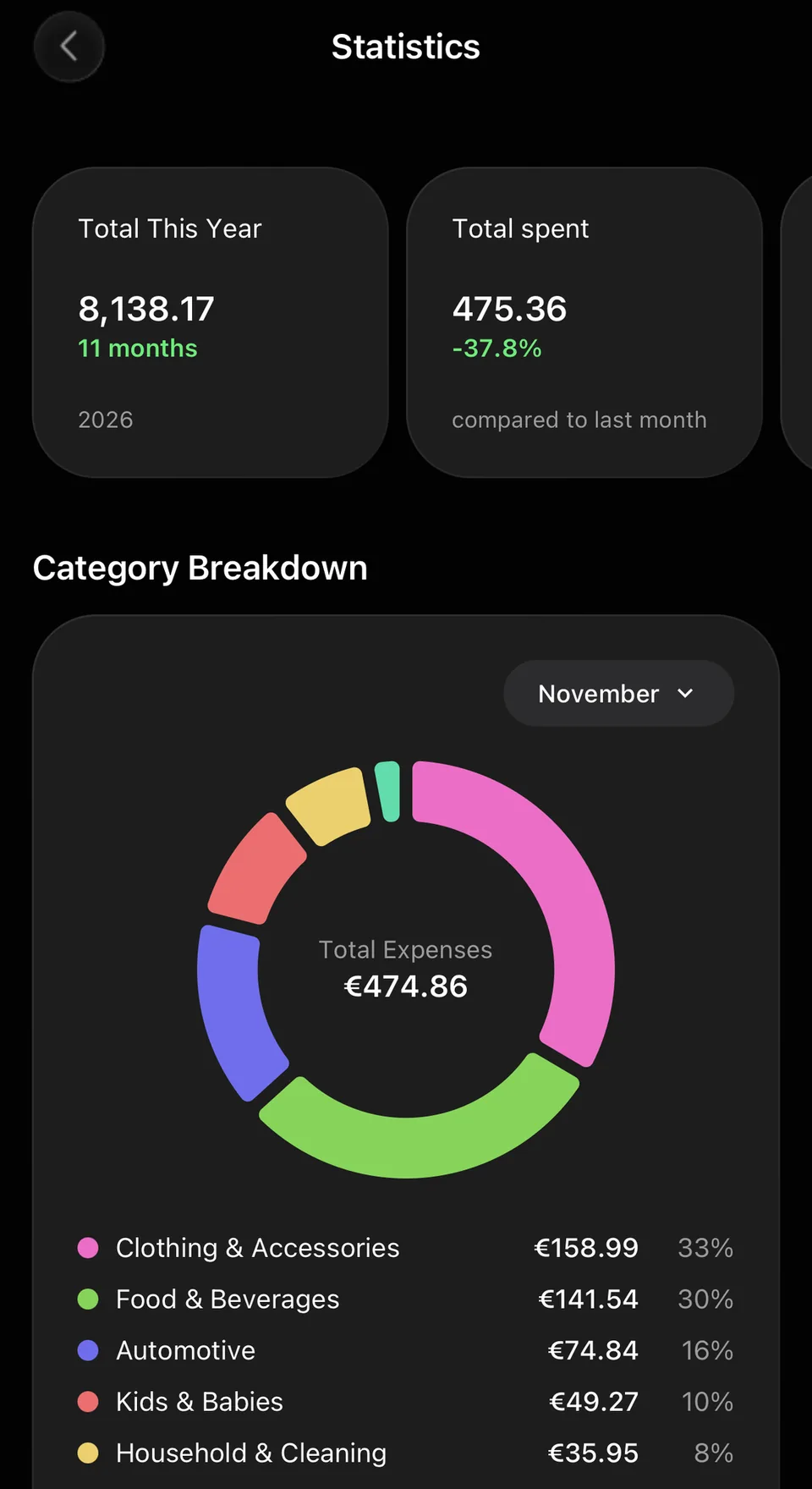
See your own spending, item by item
ReceiptStorm is free to download for iPhone and Android.



Frequently asked questions
How do I change the language in ReceiptStorm?
Go to Profile → Language and tap one of the 39 languages. The app switches right away. On iPhone, you can also use Settings → ReceiptStorm → Language; the choice you made last wins.
Can the app be in English and my item names in another language?
Yes. Set Profile → Language for item names to that language instead of Auto. It applies to the receipts you add from then on.
Will my old item names be translated if I change the setting?
No. Only new receipts use the new language; item names you’ve already saved stay as they are.
Can ReceiptStorm read receipts in other languages?
Yes. Photo scans read receipts printed in other languages, translate the item names into your Language for item names and save them that way. Brand names are meant to stay as printed.
Is the app available in Arabic or Hebrew?
Arabic and Hebrew are available as item-name languages only. The app’s own interface isn’t available in a right-to-left language.
What if my phone’s language isn’t one of the 39?
The app starts in English, and you can switch to any of the 39 languages in Profile → Language.