Family expense tracker: share receipts with your household
Use ReceiptStorm as a family expense tracker: create a household, invite up to four people with a one-time code and share receipts, statistics, income and bills.
In this guide
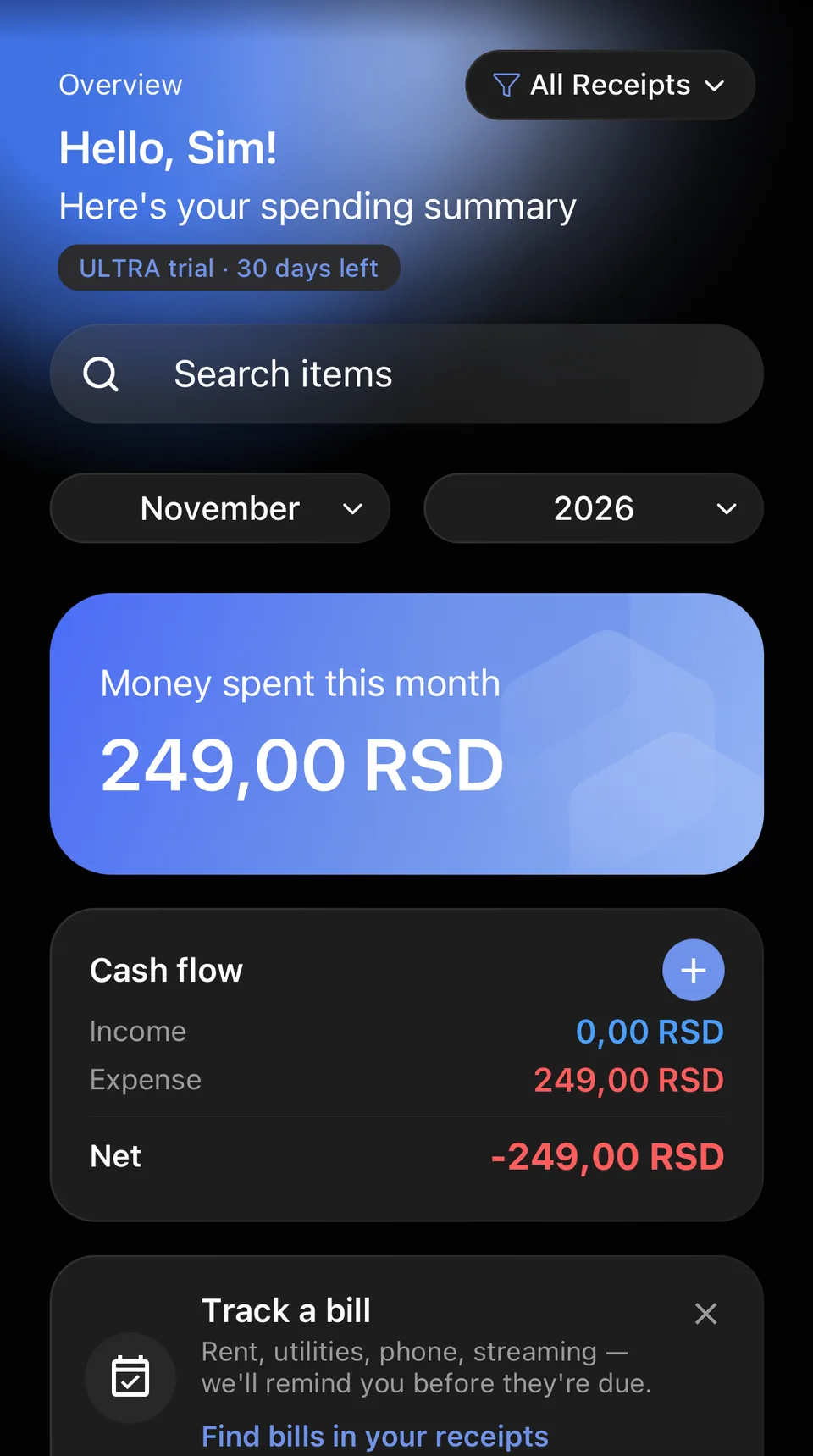
A household turns ReceiptStorm into a family expense tracker: up to five people add receipts as usual and all see one shared picture of what the household spends, earns and has to pay. Households work on every plan, and when the owner subscribes to Pro or Ultra, that plan covers every member. Here’s what gets shared, how to set it up and what stays personal.
What a household shares, and what stays personal
A household has one owner and up to four members, and each person can belong to one household at a time. Once you’re in, the app works like this:
| Part of the app | In a household |
|---|---|
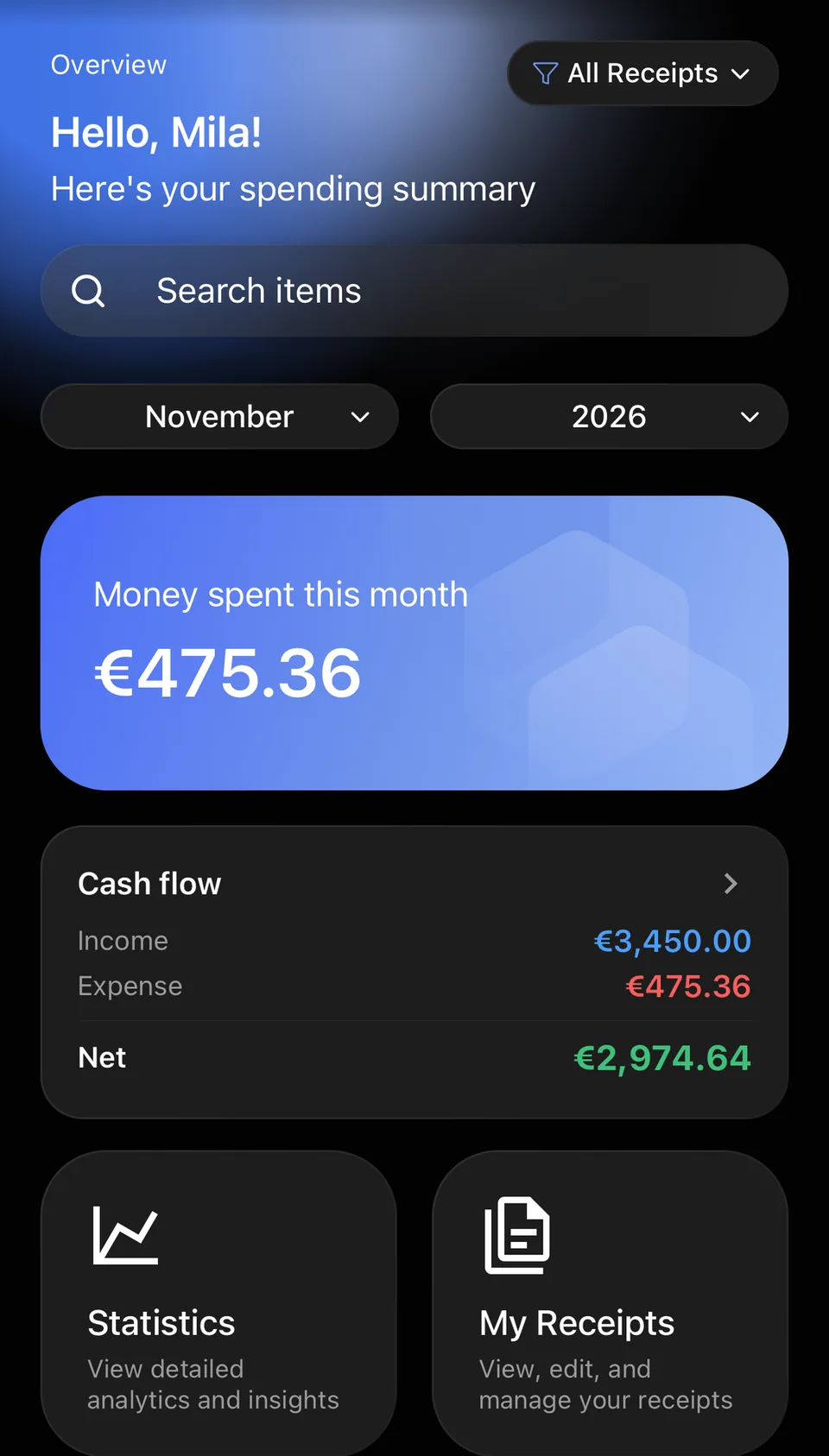
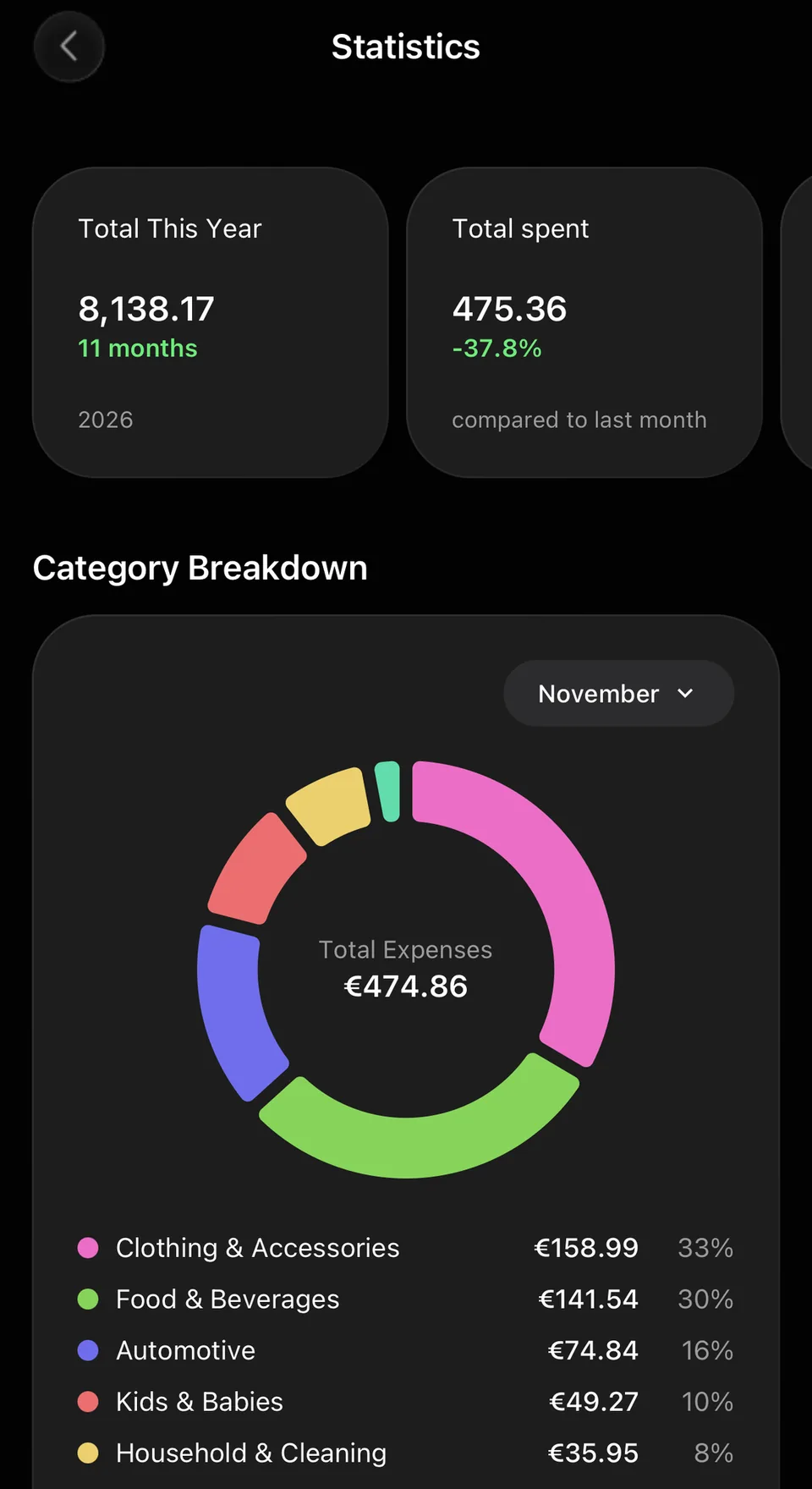
| Receipts in My Receipts, on Home and in Statistics | Shared: everyone’s receipts together |
| Spending Insights, Personal Inflation, item statistics and Buy Soon | Shared: calculated from the household’s purchases |
| Income, the Cash flow card and the Calendar | Shared |
| Bills | Shared: anyone can mark a bill paid, and the person picked under Who pays it gets the reminders |
| Budget Goals | Personal, but they count the household’s spending |
| My Basket shopping list | Personal |
| Pending Verifications of Serbian fiscal receipts | Personal |
| Settings: languages, currency for totals, notifications | Personal |
Because settings stay personal, members can even use different currencies: each person sees the household’s totals converted into their own currency for totals, as explained in receipts in other currencies.
For bills, the form in a household shows Shared with household: “Everyone in your household can see it and mark it paid.” Below it you pick Who pays it, and that person gets the bill’s reminders.
Good to know
A household shows combined spending only. There’s no per-person breakdown and no splitting of costs between members. The Household option in the All Receipts filter on Home is something else: a label for sorting your receipts, and it doesn’t share anything.
How to set up a family expense tracker with a household
Open Household
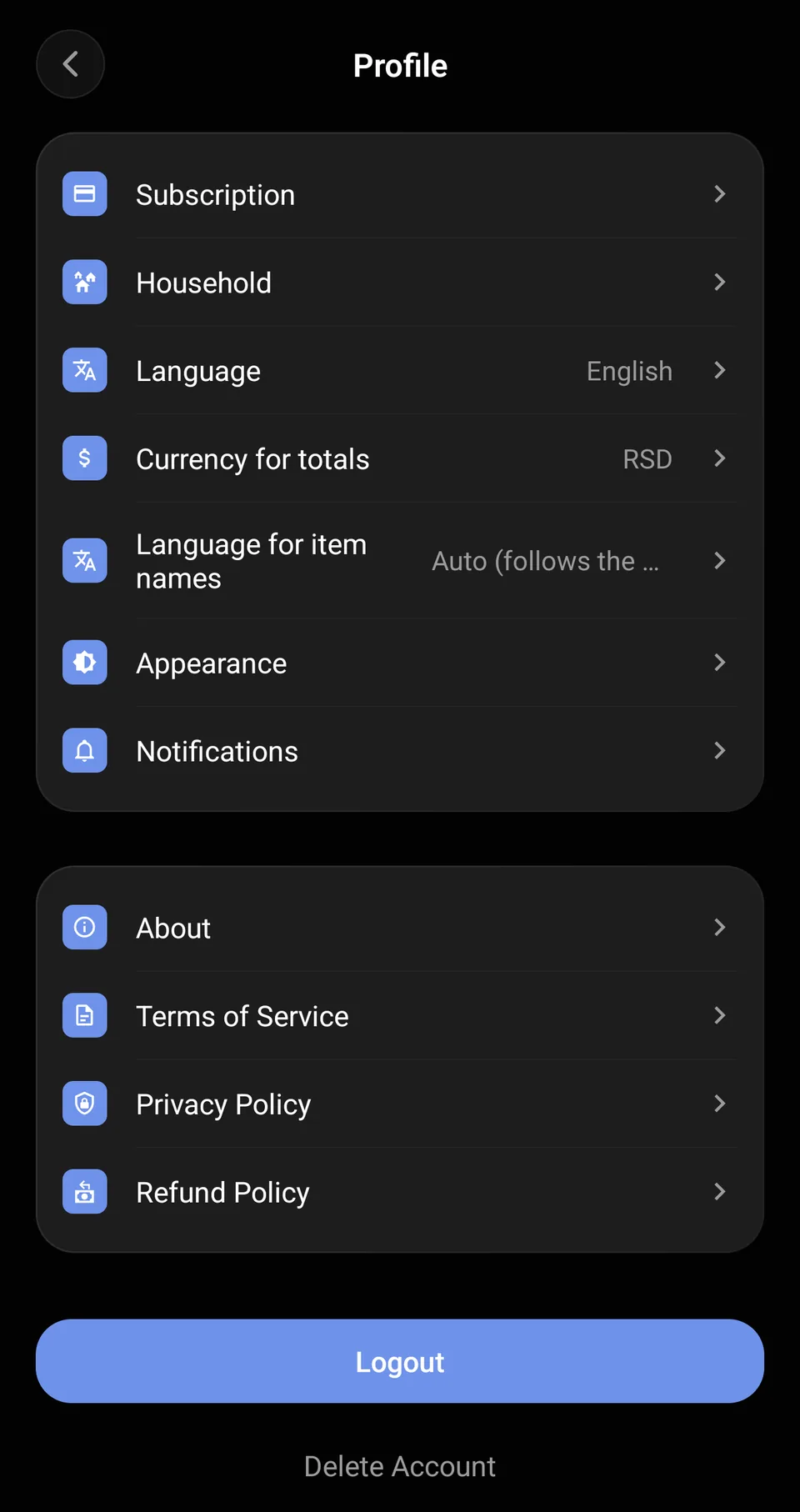
Go to Profile → Household. If you’re not in a household yet, you’ll see Create Household and Join Household.
Name it
Tap Create Household, enter a Household Name of up to 50 characters, such as “Novak family”, and tap Create. You’re now the Owner.
Get an invite code
Tap Invite. The app shows an 8-character code that works once and expires after 24 hours.
Send it
Tap Share Code to send it by message or email, or simply read it out. The member list marks each person as Owner or Member and shows how many of the five places are taken, for example 3 / 5 members.
Tip
Invite one person at a time. Each tap on Invite creates a new code and the previous one stops working, so create the next code only after the first person has joined.
How to join a household
Get the code
Ask the owner for an invite code. There’s no invite link; you type the code in yourself.
Enter it
Go to Profile → Household → Join Household, type the 8-character Invite Code and tap Join.
See the shared data
Your existing receipts, income, income reminders and bills move into the household, so the other members see them from now on.
Joining shares the receipts, income and bills you’ve already saved, not only new ones; your budget goals and My Basket list stay yours. After that, everyone keeps adding receipts the usual way: by photo, from the gallery, by manual entry or, in Serbia, by scanning the fiscal QR code. If you’re new to the app, start with how to track your spending with receipts.
How plans and AI scans work in a household
- Pro or Ultra: the owner’s plan covers every member. The app says so when you create the household: “Your PRO or ULTRA subscription covers everyone.”
- Free: the household shares one allowance of 5 AI photo scans per calendar month, counted on the owner’s account, and a scan that fails is refunded. Manual entry stays unlimited, and so does scanning the QR codes on Serbian fiscal receipts and payment slips.
- Members can’t buy a plan: their pricing screen shows Managed by your household owner. If a member already pays for a subscription of their own, it’s ignored while they’re in the household, so they should cancel it in the App Store or Google Play.
- The 30-day Ultra trial is personal: an owner’s trial doesn’t give members Ultra, and a new member keeps their own trial.
For the full comparison, see what Free, Pro and Ultra include and the pricing page.
- Members
- 3 / 5, with Mila as the owner
- AI photo scans used
- Mila 2, her partner 2, her son 1 = 5 of 5
- Next photo scan this month
- Blocked for all three
- Still unlimited
- Manual entry, plus fiscal and payment-slip QR codes in Serbia
- Allowance refills
- On the 1st of next month
At that point members see “Your household has used all 5 free AI photo scans for this month.” If Mila upgrades to Pro, all three get unlimited AI scans right away.
How to leave, remove a member or delete the household
- Leave Household (members): tap it and confirm with Yes, Leave. Your receipts, income and the bills you added leave with you; as the app puts it, “You’ll start fresh with your own receipts.”
- Remove a member (owner): tap the remove icon next to the person’s name and confirm with Yes, Remove. They leave with their own receipts, income and bills.
- Delete Household (owner): confirm with Yes, Delete. Everyone keeps their own receipts and the household is gone. The owner can’t leave, so deleting the household is how an owner steps out.
Members get a notification when someone joins or leaves, when they’re removed and when the household is deleted. If the owner deletes their account, ownership passes to the member who joined first.
See your own spending, item by item
ReceiptStorm is free to download for iPhone and Android.



Frequently asked questions
How many people can share a household?
Up to five: the owner and four members. Each person can be in one household at a time.
Do all members need a paid plan?
No. Households work on every plan. If the owner has Pro or Ultra, it covers all members; on Free, the household shares 5 AI photo scans per calendar month. See pricing.
Can we see how much each person spent?
No. Home and Statistics show the household’s combined spending. There’s no per-member breakdown and no cost splitting.
Is there an invite link?
No. The owner shares an 8-character code, which you type in under Join Household. It works once and expires after 24 hours.
What happens to my receipts if I leave the household?
They go back to your own account, along with your income and the bills you added, and the household no longer sees them.
Do we share budget goals and the shopping list?
No. Budget Goals and My Basket stay personal, but your budget goals count the whole household’s spending.